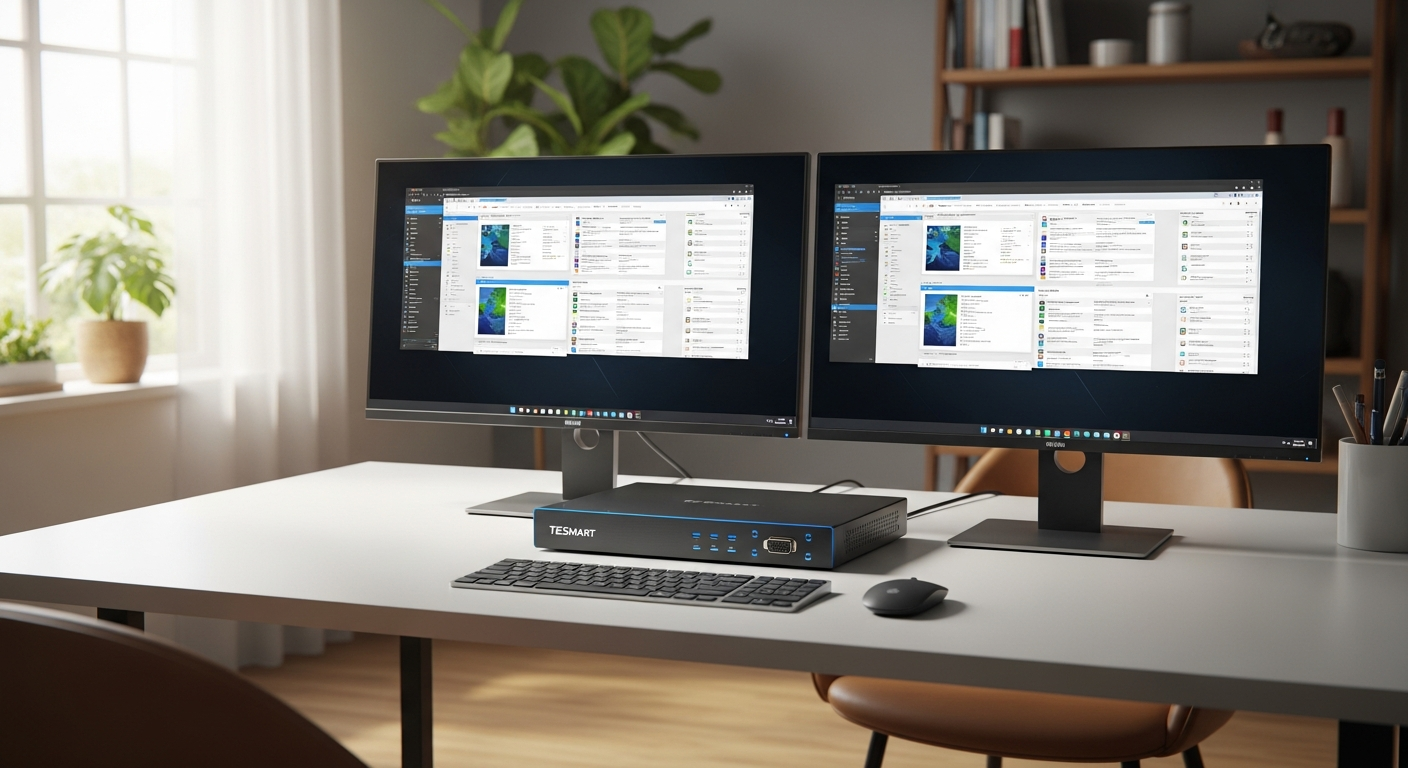
Remote work and hybrid office arrangements have exploded over the past few years, yet many professionals still juggle multiple keyboards, mice, and monitor cables like they’re performing an elaborate tech circus. The reality of managing separate peripherals for different computers creates friction that compounds throughout your workday. Your desk becomes a tangle of cables, your workflow stutters with each manual switch, and your mental energy drains from constant context-switching between setups.
The TESmart Dual Monitor 4K 60Hz HDMI KVM Switch addresses this exact pain point by consolidating your entire multi-computer setup into a single, unified control center. Rather than managing a tangled mess of peripherals, you’re controlling two separate computers with one keyboard, one mouse, and two monitors—all while maintaining stunning 4K resolution at 60Hz.
Discover how the TESmart KVM Switch can transform your hybrid workspace efficiency today.
Why Traditional Multi-Computer Setups Drain Productivity and Create Desk Clutter
The conventional approach to managing multiple computers relies on separate peripherals for each system. This creates obvious physical clutter—extra keyboards, mice, and cables sprawling across your desk—but the real cost runs deeper. Every time you switch between machines, you’re fumbling with different input devices, adjusting to different cursor speeds and keyboard layouts, and waiting for systems to respond. These micro-interruptions add up to substantial productivity loss over a week or month.
The Hidden Costs of Managing Separate Peripherals
Beyond the visible cable chaos, separate peripherals drain resources in multiple ways. Financially, you’re purchasing duplicate equipment—two keyboards, two mice, potentially two sets of speakers. Physically, your desk real estate shrinks under the weight of redundant hardware. Mentally, the cognitive load of “which keyboard am I using right now?” creates unnecessary friction. You’re also managing inconsistent settings across devices, losing time to configuration and troubleshooting.
How a Dual-Monitor KVM Switch Consolidates Your Workspace
A KVM switch intercepts your inputs and intelligently routes them to whichever computer you’ve designated as active. You press a hotkey, use a mouse gesture, click a button, or point your remote, and instantly your keyboard, mouse, and monitors shift focus to the other machine. The setup remains functionally complete—you’re not sacrificing any capability, only eliminating redundancy. Two computers, one unified control interface.
Common Hybrid Work Scenarios Where a KVM Switch Becomes Indispensable
Consider the professional who uses a work laptop and a personal machine for side projects. Throughout the day, they context-switch between corporate email and creative work. A KVM switch lets them maintain both machines on their desk without the ritual of unplugging cables or managing competing input devices. Or the designer who collaborates with a Windows workstation while using a Mac for administrative tasks. The consultant juggling client video calls on one machine while referencing materials on another—without a KVM switch, this scenario quickly becomes unmanageable.
The Ergonomic and Mental Health Benefits of a Simplified Desk Environment
A cleaner desk isn’t merely aesthetic; it directly affects focus and well-being. Fewer cables mean better cable management, reducing the visual noise that competes for your attention. A single keyboard and mouse at a stable, ergonomically optimized position means better posture and less strain. The elimination of switching friction reduces decision fatigue. You’re not constantly thinking about which device you’re using—you’re just working. This simplification creates mental space for actual work rather than peripheral management.
Real-World Productivity Gains Reported by Remote Professionals Using KVM Solutions
Professionals using KVM switches report measurable improvements in their daily workflows. The reduction in switching time alone—eliminating the need to unplug and replug cables, or manage multiple input devices—recovers roughly 10-20 minutes per day for heavy multi-computer users. Beyond time savings, there’s a qualitative shift in focus. Without the friction of manual switching, context-switching between tasks feels less disruptive. Professionals report staying in flow states longer and experiencing less mental resistance when alternating between different types of work.
Understanding 4K@60Hz Performance for Remote Work Applications
What 4K Resolution Means for Video Conferencing, Design Work, and Content Creation
4K resolution delivers four times the pixel density of 1080p, translating to sharper text, clearer images, and more screen real estate without scaling. For video conferencing, this clarity matters when you’re presenting slides or sharing detailed designs—your audience receives crisp, professional-looking content. For design work, 4K provides the pixel density necessary for precise editing and the ability to view multiple design elements simultaneously. Content creators benefit from the increased workspace when editing video, color grading, or managing complex timelines. The real advantage emerges in professional contexts where visual clarity directly impacts your work quality.
Why 60Hz Refresh Rate Matters for Smooth Cursor Movement and Professional Applications
Refresh rate determines how many times per second your monitor updates its display. At 60Hz, your screen refreshes 60 times every second. For remote work applications, this translates to smooth cursor movement and responsive interactions. When you’re navigating design software, scrolling through documents, or managing multiple windows, 60Hz provides the fluidity that feels responsive and professional. While gamers often pursue higher refresh rates for competitive advantage, professionals benefit from the improved responsiveness that 60Hz delivers over lower refresh rates. The difference between 30Hz and 60Hz is immediately noticeable; cursor lag becomes eliminated.
HDMI 2.0 Technology Explained: Bandwidth, Compatibility, and Performance Implications
HDMI 2.0 provides sufficient bandwidth to handle 4K@60Hz at 8-bit color depth or 4K@30Hz at 10-bit depth. The technology has become the industry standard for mid-to-professional-range displays and equipment. Compared to earlier HDMI versions, 2.0 dramatically increased available bandwidth, making it the minimum specification for reliable 4K streaming at 60Hz. For most remote work scenarios, HDMI 2.0 delivers everything you need. The compatibility advantage is substantial—virtually every modern display and graphics card supports HDMI 2.0, eliminating concerns about adapter chains or compatibility issues.
4:4:4 Chroma Sampling and Why Color Accuracy Matters for Remote Design and Creative Work
Chroma sampling refers to how color information is stored and transmitted. 4:4:4 sampling means full color information at every pixel, delivering the most accurate color reproduction. This matters significantly for design professionals, photographers, and video editors who depend on color accuracy. Without 4:4:4 sampling, color-critical work suffers from reduced accuracy and potential banding artifacts. For remote professionals working with design files, color grading, or other visually sensitive tasks, 4:4:4 chroma sampling isn’t a luxury—it’s a professional necessity.
How 4K@60Hz Compares to Lower-Resolution Alternatives for Hybrid Professionals
1080p remains functional for general office work, but it represents yesterday’s standard. The pixel density feels noticeably inferior when compared side-by-side with 4K. For professionals spending eight hours daily staring at their monitors, the improved clarity and reduced eye strain from 4K justify the investment. 1440p occupies a middle ground but increasingly feels like a compromise rather than a sweet spot. For professionals making a significant investment in a KVM switch, opting for 4K@60Hz ensures your setup remains future-proof and matches the capabilities of modern displays and graphics hardware.
Performance Testing Results for Common Remote Work Software
Most modern remote work applications—Zoom, Microsoft Teams, Google Meet, Adobe Creative Suite—handle 4K@60Hz without performance degradation on reasonably current hardware. Web browsers, document editors, and email clients scale beautifully at 4K. Video conferencing software specifically benefits from 4K because it provides superior clarity when presenting slides or sharing detailed content. Design applications like Photoshop, Illustrator, and Premiere Pro leverage the extra pixel density for precise editing work. Standard productivity software experiences no meaningful performance burden at 4K@60Hz on modern computers.
Potential Bottlenecks and When You Might Not Need Full 4K Performance
If your primary workflow involves basic email, web browsing, and document editing, you may find 4K provides diminishing returns relative to the cost and system demands. Older graphics hardware might struggle with 4K output, though this remains increasingly rare. Wireless connectivity limitations could theoretically impact 4K streaming in specific scenarios, though this is largely theoretical for local monitor connections. For most modern professionals, 4K represents the practical future standard, but edge cases exist where lower resolution sufficiently serves your needs.
EDID Emulation: The Feature That Prevents Workflow Disruption
What EDID (Extended Display Identification Data) Does and Why It’s Often Overlooked
EDID is the invisible handshake between your graphics card and monitor. When your computer boots, it queries the monitor asking “what are your capabilities?” The monitor responds with detailed technical information—supported resolutions, refresh rates, color depth, and other specifications. Your graphics card then configures itself accordingly. EDID emulation allows a KVM switch to present consistent display capabilities to both connected computers, regardless of their native differences.
The Frustration of Icon Rearrangement and Display Setting Changes When Switching Computers
Without proper EDID emulation, switching between computers triggers display reconfiguration on each machine. Your desktop icons rearrange themselves as Windows recalculates the layout for perceived resolution changes. Application windows reposition or resize unexpectedly. Your taskbar or menu bar shifts. Each switch requires a moment for the display to stabilize and for you to visually reorient. For professionals alternating between machines throughout the day, this becomes a constant, low-grade frustration that erodes focus and productivity.
How EDID Emulation Maintains Consistent Display Configurations Across System Switches
EDID emulation in a quality KVM switch “remembers” the display configuration from both connected computers. When you switch from Computer A to Computer B, the switch tells Computer B that the monitors it’s addressing have identical specifications to what Computer A was using. This prevents either system from attempting to reconfigure the display. Icons remain in place, application windows stay positioned where you left them, and your workflow continues without visual disruption. The switching feels seamless because it actually becomes seamless at the display level.
Real-World Scenarios Where EDID Emulation Prevents Productivity Loss
A designer working between a Windows workstation and Mac spends their day flipping between machines for different tasks. Without EDID emulation, every switch means ten seconds of waiting for displays to stabilize and icons to rearrange. Over an eight-hour day, this compounds into significant lost time and mental friction. A consultant presenting from one machine while monitoring client communication on another needs instant, seamless switching without the visual chaos of display reconfiguration. For any professional using dual machines as an integral part of their workflow, EDID emulation transforms a mediocre experience into a genuinely invisible transition.
Comparison with KVM Switches That Lack This Feature and the Problems They Create
Budget KVM switches without EDID emulation force you to endure display reconfiguration with each switch. You watch icons rearrange, windows reposition, and system UI elements shift. This isn’t merely inconvenient—it actively impedes flow state and creates cognitive load around something that should be automatic. Professionals comparing budget options against higher-end alternatives often dismiss EDID emulation as unnecessary until they experience both. Then the difference becomes undeniable. It’s one of those features you don’t appreciate until you’re forced to live without it.
Setup and Configuration Tips to Maximize EDID Emulation Benefits
During initial setup, connect both computers to the KVM switch and allow each to fully boot and recognize the monitors. This ensures the switch captures accurate EDID information from both systems. Most quality KVM switches handle this automatically, but some allow manual EDID selection or copying. Verify in your system settings that both computers recognize identical monitor configurations. If you’re adding additional displays later, recycle the power on the KVM switch to ensure EDID information updates properly.
Explore the TESmart KVM Switch and experience seamless EDID emulation in your workflow today.
Troubleshooting Common EDID-Related Issues in Hybrid Work Environments
Occasionally, display glitches occur despite EDID emulation. If icons rearrange after switching, try manually reassigning them and then power-cycling the KVM switch to resync EDID data. If one display goes blank after switching, verify that both monitors are connected to the KVM switch outputs (not directly to the computers). Some systems require you to manually select the correct display input on the monitor itself after switching. If problems persist, check whether your KVM switch firmware is current—manufacturers frequently release updates addressing display compatibility issues.
Transform Your Hybrid Workspace Today
The TESmart Dual Monitor 4K 60Hz HDMI KVM Switch isn’t just another piece of desk hardware—it’s a gateway to reclaiming your workspace and your focus. For hybrid workers drowning in cable management and constant switching friction, this device delivers tangible relief. The combination of stunning 4K visuals, seamless switching methods, robust USB 3.0 peripheral sharing, and cross-platform compatibility creates a solution that actually works for the way modern professionals operate.
Yes, the price tag sits higher than basic KVM switches, but you’re investing in stability, performance, and the kind of thoughtful engineering that prevents daily headaches. The EDID emulation alone eliminates invisible productivity drains that compound over weeks and months. The 4K@60Hz capability future-proofs your setup for years of professional work. The multiple switching methods—hotkeys, mouse gestures, button controls, and remote operation—ensure you’re never frustrated by a single control paradigm.
For professionals who value their time and sanity, that’s money exceptionally well spent. Your desk should support your work, not compete with it. Your peripherals should disappear into the background, not demand constant attention and management. The TESmart KVM switch delivers on that promise.
Leave a Reply