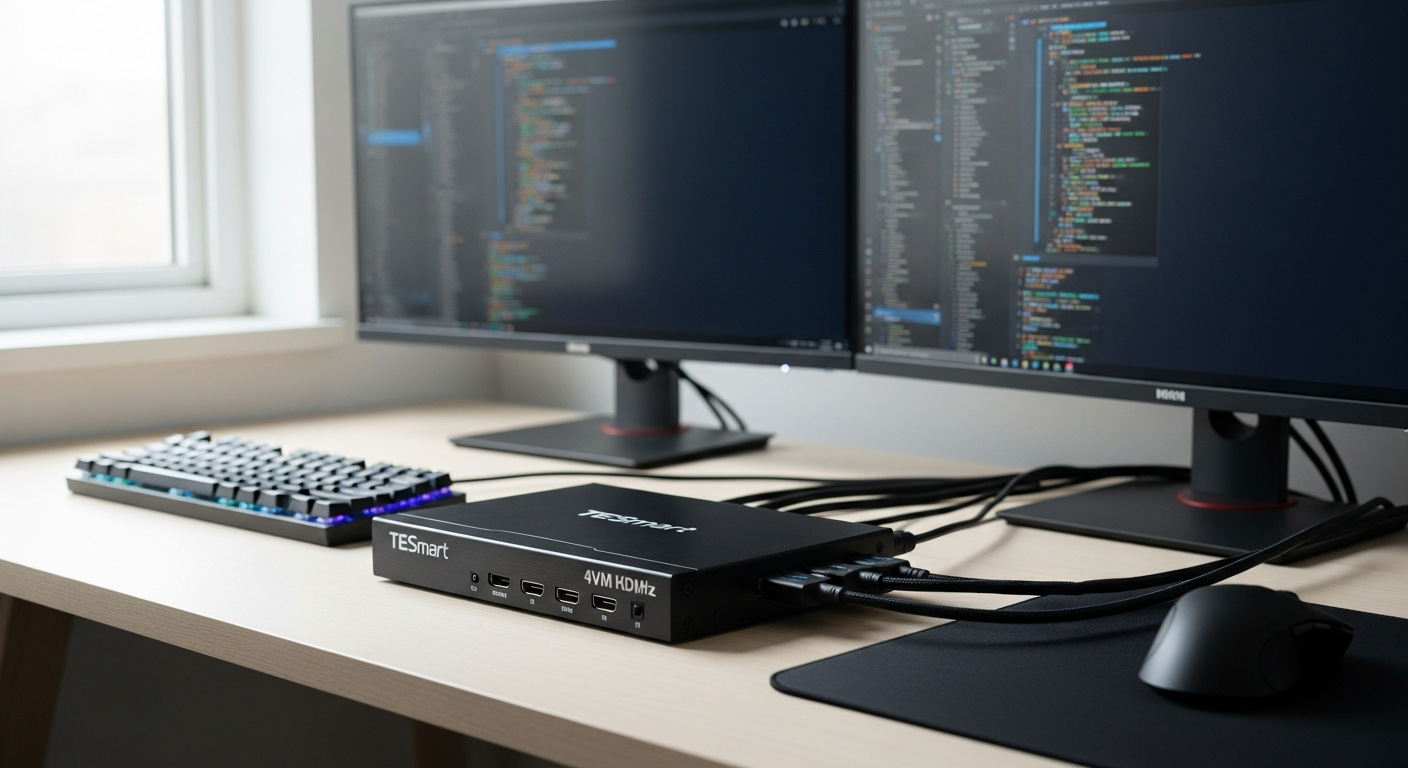
If you're managing multiple computers, you already know the reality: cable chaos. Tangled HDMI cords snake across your desk, you're constantly reaching for different keyboards and mice, and your monitor configuration gets disrupted every time you switch systems. The friction is real, and it compounds throughout your workday—fragmenting focus, consuming time, and transforming what should be a clean workspace into a tangle of redundant peripherals.
The TESmart Dual Monitor 4K60Hz HDMI KVM Switch changes this equation entirely. This device sits between your computers and monitors, giving you complete control over two separate systems using a single keyboard, mouse, and two displays. You get 4K@60Hz visual clarity—no compression, no quality compromise—paired with enterprise-grade switching technology and a solid aluminum construction built to last.
Throughout this guide, you'll understand exactly how this KVM switch works, why 4K@60Hz capability matters for your work, what real-world benefits you'll experience, and which limitations deserve serious consideration before you buy. Discover how the TESmart Dual Monitor 4K60Hz HDMI KVM Switch can transform your multi-computer setup today.
What Makes a Dual Monitor KVM Switch the Desk Organizer You've Been Missing
Most people misunderstand what a KVM switch actually does. It's not just a glorified cable splitter. A standard KVM (keyboard, video, mouse) lets you control one computer with peripherals meant for another. A dual-monitor KVM switch takes this further: it lets you operate two separate computers using one keyboard, one mouse, and two monitors simultaneously.
Here's the practical difference. Without a KVM switch, you either keep duplicate keyboards and mice on your desk—wasting space and creating cable nightmares—or you physically unplug and replug cables each time you need to switch computers. With a dual-monitor KVM, one keyboard and mouse control both systems. You press a button, use a hotkey, or grab the remote, and your input devices instantly connect to your other computer.
Understanding the fundamental difference between a standard KVM and a dual-monitor KVM switch
A standard KVM gives you one monitor, one keyboard, and one mouse controlling one computer at a time. A dual-monitor KVM extends this: both monitors and all peripherals remain connected, but you're controlling whichever computer you've selected. This distinction matters because it determines whether your display setup remains intact when you switch or if windows start rearranging themselves.
How one keyboard and mouse can control two separate computers simultaneously
The mechanics are straightforward. Your keyboard and mouse connect to the KVM switch's USB hub, not directly to either computer. When you switch inputs using the KVM's control methods, the device routes your keyboard and mouse signals to whichever computer you've selected. From that computer's perspective, it's receiving normal input. The switch happens at the hardware level, below the operating system, which means the transition is nearly instantaneous.
The desk space savings and cable reduction benefits for hybrid workers and remote professionals
Hybrid workers managing personal and work computers feel this benefit immediately. Instead of two complete keyboard-and-mouse setups occupying desk real estate, you have one. Instead of cables draped across your desk connecting duplicate peripherals, you have organized connections to a single switch. The visual difference is dramatic. Your desk transforms from cluttered to purposeful.
Why peripheral consolidation matters more than most people realize
Consolidating peripherals saves more than space. It saves frustration, setup time, and mental energy. You're not switching between different mice with different sensitivities or keyboards with different layouts. You maintain consistent muscle memory. More importantly, the USB 3.0 hub integrated into the KVM switch means you can share external hard drives, webcams, and printers between both computers without manually reconnecting cables. These small efficiencies compound significantly across your workday.
Real-world scenarios where dual-monitor KVM switches eliminate workflow friction
Consider a software developer testing code across Windows and Linux machines. With a KVM switch, they compile on their Linux workstation, glance at test results on one monitor, switch to their Windows machine with a hotkey, check browser compatibility, then switch back—all without touching a single cable. A designer might be exporting files on one computer while reviewing assets on another, maintaining both monitor setups perfectly. A trader monitoring multiple platforms can dedicate one computer to charting while the other handles order execution. The switch makes these workflows feel seamless rather than fragmented.
The 4K@60Hz Advantage: Why Resolution Matters More Than You Think
The marketing term "4K@60Hz" sounds technical, but the practical benefits are profound. Understanding what this specification actually delivers helps explain why professionals choose the TESmart switch over cheaper alternatives.
Breaking down what 4K@60Hz means in practical terms (3840×2160 resolution at 60Hz refresh rate)
4K resolution means 3840 pixels horizontally by 2160 pixels vertically—four times the pixel density of 1080p. The @60Hz notation indicates the monitor refreshes 60 times per second. For static work like design, spreadsheet analysis, or video editing, 60Hz is perfectly adequate. The combination delivers crisp, detailed visuals on large monitors without the blurriness or pixelation you'd experience at lower resolutions.
Full 4:4:4 chroma subsampling explained: why it prevents color degradation and compression artifacts
Technical video transmission formats sometimes compress color information to save bandwidth. This is called chroma subsampling, and it can result in color banding or noticeable artifacts around text and fine details. The TESmart switch supports full 4:4:4 chroma subsampling, meaning no color compression occurs. Every pixel receives complete color information. Video editors and designers immediately notice this—colors are richer, gradients appear smoother, and text remains perfectly sharp even at high magnification.
HDCP 2.2 compliance and what it means for streaming, video editing, and content protection
HDCP (High-bandwidth Digital Content Protection) is a copy-protection standard used by streaming services and premium content producers. HDCP 2.2 is the current version. Without it, you'd struggle to stream certain content or work with protected video files. The TESmart's HDCP 2.2 compliance means you can integrate the switch into professional workflows involving Netflix, Disney+, or protected broadcast content without compatibility headaches.
How 4K visuals transform creative work, design tasks, and detailed spreadsheet management
A designer working on UI mockups benefits enormously from 4K resolution. Small interface elements appear clear and properly proportioned. Financial analysts reviewing complex spreadsheets with dozens of columns can actually see the data without constant scrolling and squinting. Video editors reviewing timelines and color grading benefit from the pixel density and accurate color representation. Content creators reviewing footage at full resolution can spot technical issues that lower resolutions would hide.
Comparing 4K@60Hz to lower resolution alternatives and the quality difference you'll actually notice
Budget KVM switches often max out at 1080p or 1440p. The visual difference between 1440p and 4K isn't subtle. Text appears crisper. Images display finer detail. Color gradients appear smoother. If you spend eight hours daily staring at your monitors, this matters. Your eyes experience less strain, and your work quality improves because you're seeing what you're actually creating, not a compressed approximation.
The performance advantage for professionals working with high-resolution displays
Professional monitors—especially 27-inch and larger models—are designed for 4K viewing. Running them at lower resolutions introduces upscaling artifacts and defeats the monitor's purpose. The TESmart's 4K@60Hz support means you're getting the visual fidelity your expensive monitors were designed to deliver. You're not leaving performance on the table.
Seamless Switching: The Technology That Keeps Your Workflow Uninterrupted
Switching between computers happens dozens of times throughout your workday. The method you use determines whether the experience feels natural or frustrating.
EDID emulation technology and how it prevents window rearrangement when switching between computers
EDID (Extended Display Identification Data) is information your monitor sends to your computer describing its resolution, refresh rate, and capabilities. When you switch computers without EDID emulation, your new computer doesn't recognize the display configuration and may rearrange windows, change resolution settings, or scramble your layout. The TESmart's EDID emulation maintains the display configuration across switches. Your window arrangement stays exactly where you left it. Your resolution remains stable. This feature single-handedly eliminates one of the most annoying aspects of multi-computer setups.
Three switching methods explained: front-panel buttons, keyboard hotkeys, and IR remote control
The TESmart offers flexibility in how you initiate switches. Front-panel buttons on the device itself are reliable and don't require configuration—just press and switch. Keyboard hotkeys offer speed if you keep your hands on the keyboard during work. The IR remote control is useful if the switch sits out of arm's reach or if you frequently stand while working. Having all three options means you can choose the method that fits your specific workflow.
The brief two-second black screen transition and whether it impacts real-world usage
When you switch between computers, the video signal transitions, and your monitors briefly go black for roughly two seconds. This is a hardware limitation inherent to how HDMI switching works. In practice, this is barely noticeable. You press the hotkey, glance at your monitor, and the image has returned. It doesn't interrupt focus or create meaningful workflow delays. The transition is faster than manually plugging and unplugging cables.
Scroll Lock hotkey functionality and potential compatibility considerations with different keyboards
The TESmart uses the Scroll Lock key to trigger switching hotkeys (Scroll Lock + 1 for computer 1, Scroll Lock + 2 for computer 2, etc.). Modern keyboards use Scroll Lock rarely, so this works well for most users. However, some applications or older keyboard layouts might interact oddly with Scroll Lock. If you work extensively with legacy systems or use software that specifically monitors Scroll Lock status, this could create minor friction. Most users never notice this limitation.
Speed and responsiveness benchmarks for switching between connected systems
Switching is genuinely fast. Once you press the hotkey or button, input devices reconnect to your target computer within milliseconds. Video takes the longest—roughly two seconds for the display to stabilize. The overall experience is responsive and feels immediate. There's no lag or hesitation that would make you question whether your command registered.
How stable display configurations maintain consistent workspace organization across computer changes
Because EDID emulation keeps your display configuration consistent, your workspace remains stable. You're not constantly resetting zoom levels, reordering windows, or adjusting virtual desktop arrangements. This consistency compounds into serious productivity gains. You can develop muscle memory about where specific windows live on your displays. You know exactly where your tools and information reside, regardless of which computer you're working on.
USB 3.0 Hub Integration: Sharing Peripherals Without the Hassle
Beyond keyboard and mouse control, the integrated USB 3.0 hub transforms how you manage peripheral devices.
Multiple USB 3.0 ports for connecting shared devices (webcams, external drives, printers, scanners)
The TESmart includes several USB 3.0 ports where you can connect devices you need access to from both computers. External hard drives become immediately available to either system. Your webcam connects once and functions with both computers. Printers are accessible regardless of which computer you're controlling. Scanners, USB microphones, and other peripherals work the same way—plug in once, access from both machines.
Transfer speed advantages of USB 3.0 versus older USB standards
USB 3.0 offers 5 Gbps theoretical bandwidth—roughly ten times faster than USB 2.0. When you're transferring large video files or backing up project directories between computers, this speed difference is genuinely noticeable. A 10GB file moves in seconds via USB 3.0 versus minutes on USB 2.0. For professionals working with video, photography, or large data files, this matters.
Peripheral compatibility and which devices work best through the KVM switch
Most USB peripherals work flawlessly through the KVM. Standard input devices, storage devices, and simple peripherals have no issues. Some gaming peripherals with complex RGB lighting software or specialized drivers occasionally don't fully recognize their configuration when connected through the switch—the hardware works, but customization software might not detect it. Standard mice and keyboards work perfectly. External drives, webcams, and printers have excellent compatibility.
Reducing the need for multiple keyboards, mice, and external storage solutions
One of the most practical benefits of KVM integration is eliminating duplicate peripherals. You don't need keyboards for each computer, separate external drives for each system, or multiple USB hubs. Everything connects through the switch, drastically simplifying your setup. This savings extends beyond desk space into your technology budget—buying quality peripherals once instead of twice is financially sensible.
Practical setup for professionals who need quick access to shared resources
A video editor might have an external SSD connected to the KVM switch where project files live. They can access those files from their editing workstation or their effects-rendering machine without unplugging anything. A developer might share code repositories through a portable drive connected to the KVM, letting them pull the latest version regardless of which development environment they're using. These practical arrangements make multi-computer workflows genuinely efficient. Experience the efficiency of peripheral consolidation with the TESmart Dual Monitor 4K60Hz HDMI KVM Switch.
Bandwidth management when multiple USB devices are active simultaneously
USB bandwidth is shared across all connected devices. When you're transferring a large file on an external drive while your webcam is active in a video call, both devices draw from the same pool. In practice, the TESmart handles typical simultaneous usage well. Heavy concurrent usage (multiple high-bandwidth transfers, for example) might see minor slowdowns, but standard professional workflows manage bandwidth without issues.
Build Quality and Hardware Specifications You Can Trust
The physical device you're purchasing matters as much as the features it provides.
Aluminum alloy casing and its contribution to durability and premium aesthetics
The TESmart switch houses its internals in an aluminum alloy chassis. This material choice matters. Plastic enclosures look cheap and degrade quickly. Aluminum provides genuine durability, dissipates heat efficiently, and conveys quality. The device sits on your desk as a professional tool rather than consumer electronics. The weight and feel communicate that you've invested in something built to last.
Complete technical specifications: HDMI inputs/outputs, USB ports, power requirements
The typical TESmart Dual Monitor 4K60Hz model includes two HDMI inputs per computer (four total), two HDMI outputs for your monitors, multiple USB 3.0 type-A ports for peripherals, USB-B ports for connecting to your computers, and 3.5mm audio jacks for shared audio output. The device operates on 5V power via an included power supply. These specifications create a complete ecosystem where everything you need integrates into one compact device.
Connectivity options including USB-B ports for computer connections and 3.5mm audio jacks
USB-B ports connect your computers to the switch. This is standard for USB hub devices and works reliably. The 3.5mm audio jacks let you route audio from either computer to shared speakers or headphones, meaning you're not muting one computer's sound to hear another's. Some users find audio management through the switch occasionally finicky, but this is a minor consideration for most workflows.
5V power supply efficiency and safety considerations for professional environments
The 5V power requirement is modest and efficient. The included power supply is adequate for professional use. The low power consumption means the device generates minimal heat and poses no safety concerns. It's designed to run continuously without worry.
Comparison of different TESmart models (like the HKS202-P23) and their specifications
TESmart offers multiple dual-monitor 4K60Hz models with slightly different feature sets. The HKS202-P23, their flagship model, typically retails around $239.99 and represents their most feature-complete offering. Other models in their lineup may include fewer USB ports or slightly different design elements but maintain the core 4K@60Hz capability. Reviewing specific models helps identify which features align with your exact needs.
Longevity expectations and warranty considerations for professional environments
The aluminum construction and quality components suggest longevity well beyond typical consumer electronics—many users report five-plus years of reliable service. TESmart provides warranty support, though the specifics vary by region and retailer. For professional environments where equipment uptime matters, checking warranty terms before purchase is prudent.
Real-World Performance: Where the TESmart Switch Excels and Falls Short
No device is perfect. Understanding both strengths and limitations helps set realistic expectations.
Strengths: Seamless switching speed, exceptional 4K image quality, robust build quality, flexible switching methods, excellent value proposition
The TESmart genuinely excels in its core functions. Switching between computers is fast and reliable. 4K@60Hz visuals are crisp and artifact-free. The build quality feels premium. You get three switching methods to match your preferences. The price-to-feature ratio is exceptional—you're getting professional-grade functionality at a consumer-friendly price point. Most users report satisfaction with their purchase, and the device integrates seamlessly into their workflows.
Limitations: Occasional audio issues, Scroll Lock hotkey interference, brief video signal transition delay, gaming peripheral software compatibility, potential firmware updates needed, compatibility variations across configurations
Some users report audio quirks when routing sound through the switch, though this affects a minority of users. Scroll Lock hotkey functionality, while functional for most, can interfere with certain applications or keyboards. The two-second video transition delay is minor but exists. Gaming peripheral customization software sometimes doesn't recognize peripherals connected through the KVM—the hardware works, but RGB lighting or macro software might be inaccessible. Occasional firmware updates address bugs, requiring minimal effort but indicating the device isn't entirely issue-free out of the box. Specific monitor or computer combinations occasionally exhibit compatibility quirks, though this is rare.
Ideal Use Cases: Who Benefits Most from This KVM Switch
The TESmart serves specific user profiles exceptionally well.
Software developers and programmers managing multiple development environments
Developers frequently maintain separate machines for testing across operating systems or configurations. A programmer might have a Linux workstation for backend development and a Windows machine for cross-platform testing. The KVM switch eliminates cable chaos while maintaining two complete, separate environments. EDID emulation ensures your IDE windows stay positioned correctly regardless of which computer you're using.
Video editors and designers working across different workstations for specialized tasks
Creative professionals often use specialized hardware for specific tasks—a beefy rendering machine separate from an editing station, or a color-grading reference system isolated from general editing work. The TESmart's 4K@60Hz support and high-quality HDMI transmission make it ideal for creative workflows where visual fidelity matters. USB 3.0 integration means project files move seamlessly between systems.
Financial analysts and traders requiring simultaneous access to multiple trading platforms
Traders and analysts managing multiple trading platforms or data sources benefit from dedicated machines running specialized software. The TESmart lets them maintain separate systems while controlling both from a single interface. Quick switching between price analysis and order execution happens instantly. Multiple monitors display different feeds simultaneously without cable confusion.
Content creators switching between recording, editing, and streaming systems
Streamers and content creators often maintain separate machines—one for streaming, another for editing, possibly a third for rendering. The TESmart consolidates control while EDID emulation maintains consistent workspace layouts. USB peripherals like capture cards, microphones, and external drives connect once and serve all machines.
IT professionals testing and managing multiple machines from a single workspace
IT support technicians and systems administrators frequently test configurations across multiple machines. The KVM switch lets them manage a lab of systems from one clean desk setup. Switching between test machines is instant. Shared external drives and USB devices facilitate file transfer and system imaging.
Hybrid workers connecting personal and work computers without cable chaos
Hybrid workers juggling personal laptops and work desktops no longer need duplicate peripherals or messy cable arrangements. One keyboard, mouse, and monitor setup serves both machines. Quick hotkey switching moves between personal and work contexts seamlessly. USB peripherals like printers and external backup drives serve both systems without reconfiguration.
Streamers and gamers managing content creation and gaming systems simultaneously
Streamers often maintain one system for streaming the game and another handling stream overlays, chat monitoring, and audio mixing. The TESmart's quick switching and multiple USB 3.0 ports make this setup straightforward. Gaming peripheral compatibility is generally good, though users should verify their specific devices beforehand.
Pricing, Value, and ROI for Your Workspace Investment
Understanding the financial dimension helps evaluate whether this investment makes sense.
Price range analysis ($110-$240 USD depending on model and features)
Entry-level TESmart dual-monitor 4K60Hz models cost around $110, while their flagship HKS202-P23 reaches $239.99. The variation reflects differences in USB port count, build materials, and included accessories. Most professionals find the mid-range models ($150-180) offer excellent balance between price and functionality.
Cost comparison versus purchasing duplicate peripherals for each computer
Consider the alternative: two quality keyboards at $80 each, two gaming mice at $60 each, two external backup drives at $120 each, plus the desk space wasted on duplicate equipment. You've easily spent $400+ while still managing cables and context-switching friction. The TESmart's $150-240 investment pays for itself in eliminated duplicate purchases while solving organizational problems that money alone can't fix.
Long-term value calculation for professionals using the switch daily
Professionals using the switch daily recover its cost through time savings and workflow efficiency within months. Eliminating cable-switching time, maintaining consistent window arrangements through EDID emulation, and accessing shared peripherals without reconfiguration adds up. After the initial investment recovers, you're operating with a superior setup for years. The lifespan of well-maintained TESmart switches is five-plus years, making the annual cost minimal.
Where to find competitive pricing and legitimate retailers
TESmart products are available through their official website, Amazon, B&H Photo, and other electronics retailers. Prices vary slightly by retailer, but legitimate sources are well-established. Avoid significantly discounted pricing from unknown sellers, as this can indicate refurbished or counterfeit units.
Warranty and support considerations when evaluating total cost of ownership
TESmart provides warranty coverage varying by region and retailer—typically one to three years. Support quality is generally responsive. When factoring total cost of ownership, consider the warranty period and your replacement risk if the device fails. Professional environments might justify purchasing from retailers offering extended warranties.
Return on investment through improved productivity and reduced setup friction
The ROI extends beyond money. Time reclaimed from cable management, context-switching, and peripheral troubleshooting has real value. Workspace organization improvements impact daily experience and workplace satisfaction. The device becomes invisible infrastructure supporting your actual work rather than a source of friction.
Setup, Installation, and Getting Started the Right Way
Getting the device properly configured ensures you experience its full benefits.
Unboxing and identifying all included cables and components
Your TESmart arrives with HDMI cables, USB-B cables for computer connections, the power supply, a quick-start guide, and typically an IR remote. Familiarize yourself with each component before setup. The USB-B cables connect your computers to the switch—these are critical.
Step-by-step connection process for monitors, computers, and peripherals
Connection order matters. First, connect your monitors to the HDMI output ports on the switch. Next, connect your computers via USB-B cables. Then, plug your keyboard and mouse into the USB 3.0 ports. Add any additional USB peripherals (external drives, webcams, printers) to remaining USB ports. Finally, connect power and ensure all lights indicate proper operation.
EDID emulation configuration for optimal display stability
The switch typically auto-detects and configures EDID emulation, but verify that your display resolution and refresh rate remain stable when switching computers. If windows rearrange or resolution shifts after switching, access the switch settings (usually via buttons or software) to enable EDID emulation explicitly. Proper configuration prevents this frustration.
Hotkey programming and customization for your specific workflow
Scroll Lock + 1 switches to computer 1, Scroll Lock + 2 switches to computer 2. Some models allow customization of these hotkeys. Verify which keys work best with your keyboard layout and habits. Test hotkeys thoroughly before relying on them during important work.
IR remote control setup and range considerations
The included IR remote offers wireless switching from across your desk. Set it in an accessible location and ensure no obstacles block the signal path to the switch. Test the range from your typical working position. Most users find the remote convenient but not essential if keyboard hotkeys serve your workflow.
Troubleshooting common initial connection issues
If your monitors don't display after initial connection, verify HDMI cables are fully seated and you've selected the correct input source on your monitors. If the computer doesn't recognize the USB hub, try different USB ports or replace USB-B cables. If switching doesn't work, ensure the switch is powered and verify you're using correct hotkey sequences. Most issues resolve through basic troubleshooting.
Best practices for cable management around the KVM switch
Position the switch behind your monitors or to the side where cables remain unobtrusive. Label cables at both ends so you remember which goes to which computer. Use cable ties or trays to organize the bundle neatly. Proper cable management maintains the aesthetic organization that makes the KVM switch valuable in the first place.
Making the Decision: Is This the Right Switch for Your Setup?
Before purchasing, honestly assess your situation.
Assessing your specific multi-computer needs and workflow requirements
Ask yourself: How often do I switch between computers? Am I managing two separate systems or using a laptop dock that primarily controls one machine? Do I need true dual-monitor support, or would a simpler solution work? If you're genuinely operating two distinct computers multiple times daily, the KVM switch solves real problems. If you rarely switch or primarily use one computer, the investment might be unnecessary.
Compatibility check: ensuring your monitors, computers, and peripherals work seamlessly
Verify your monitors support 4K@60Hz via HDMI. Confirm your computers have HDMI outputs (most do, but some laptops use USB-C or DisplayPort). Check that your keyboard and mouse are standard USB devices without specialized software dependencies. Test your printers and external drives for USB 3.0 compatibility. Create a list of everything you'll connect and verify each item's compatibility before purchasing.
Comparing TESmart's dual-monitor 4K60Hz switch against competing alternatives
Competitors include Aten, IOGEAR, and other brands offering similar functionality at comparable prices. Research reviews of competing models. The TESmart consistently receives positive feedback for reliability and value, but compare against alternatives to ensure you're making an informed choice. Sometimes a competing product aligns better with your specific peripheral set or switching preferences.
Budget considerations and whether premium features justify the investment
If $150-240 creates financial strain, entry-level KVM switches at lower price points exist—they simply offer lower resolution or fewer USB ports. If budget isn't a constraint, the TESmart's 4K@60Hz support and premium build justify the investment. Honestly assess your financial situation and the value this device brings to your specific workflow.
Questions to ask yourself before committing to a KVM switch purchase
Will this solve a genuine problem in my workflow, or am I buying a solution looking for a problem? Can I verify compatibility with my specific monitors and computers before committing? Am I willing to invest time in proper setup and configuration? If I return the device unused, what's my recourse with the retailer? Do I truly need 4K@60Hz support, or would a lower-cost alternative suffice? Answering these questions honestly prevents buyer's remorse.
Alternative solutions if a KVM switch doesn't fit your particular setup
USB-only KVM switches omit video switching and work for shared keyboard/mouse control only. Monitor splitters let multiple computers display on one screen but require manual cable switching. Docking stations consolidate a laptop with additional displays and peripherals but only control one primary machine. Virtual desktop software links computers over a network. Evaluate whether any of these alternatives better match your actual needs.
Your Path to a Clutter-Free, High-Performance Workspace
The TESmart Dual Monitor 4K60Hz HDMI KVM Switch delivers on its promise to eliminate multi-computer chaos without sacrificing visual quality or workspace elegance. The 4K@60Hz capability with full 4:4:4 chroma subsampling ensures your creative work displays faithfully. EDID emulation technology maintains stable display configurations across computer switches. The integrated USB 3.0 hub consolidates peripheral management. Flexible switching options—front-panel buttons, keyboard hotkeys, and IR remote—adapt to your specific preferences. The aluminum construction feels premium and durable.
However, the device isn't flawless. Some users encounter audio quirks. Scroll Lock hotkey functionality occasionally conflicts with specific keyboards or applications. The two-second video transition delay is minor but present. Gaming peripheral customization software sometimes fails to recognize devices through the KVM. These limitations affect a minority of users, but they deserve consideration if your setup includes the affected components.
The real question isn't whether the TESmart switch is good—it demonstrably is. The question is whether it solves genuine friction in your specific workflow. If you're a hybrid worker managing personal and professional computers, a software developer testing across multiple environments, a designer or editor maintaining specialized workstations, or anyone operating two separate computers daily, the investment typically pays for itself through reclaimed desk space, eliminated cable tangles, and workflow clarity. The price point of $110-240 sits between budget alternatives and premium competitors, making it financially accessible for professionals who prioritize quality.
Before purchasing, run through your compatibility checklist methodically. Verify your monitors support HDMI 4K60Hz transmission. Confirm your computers have HDMI outputs. Test peripheral compatibility. Consider your preferred switching method. Honestly assess whether your current setup generates enough friction to warrant change. When alignment is right, this TESmart switch becomes the kind of infrastructure you stop thinking about—it simply works, quietly supporting your actual work while maintaining the clutter-free, efficient workspace you deserve. Transform your multi-computer workspace with the TESmart Dual Monitor 4K60Hz HDMI KVM Switch and experience seamless switching, stunning visuals, and ultimate efficiency.
Leave a Reply