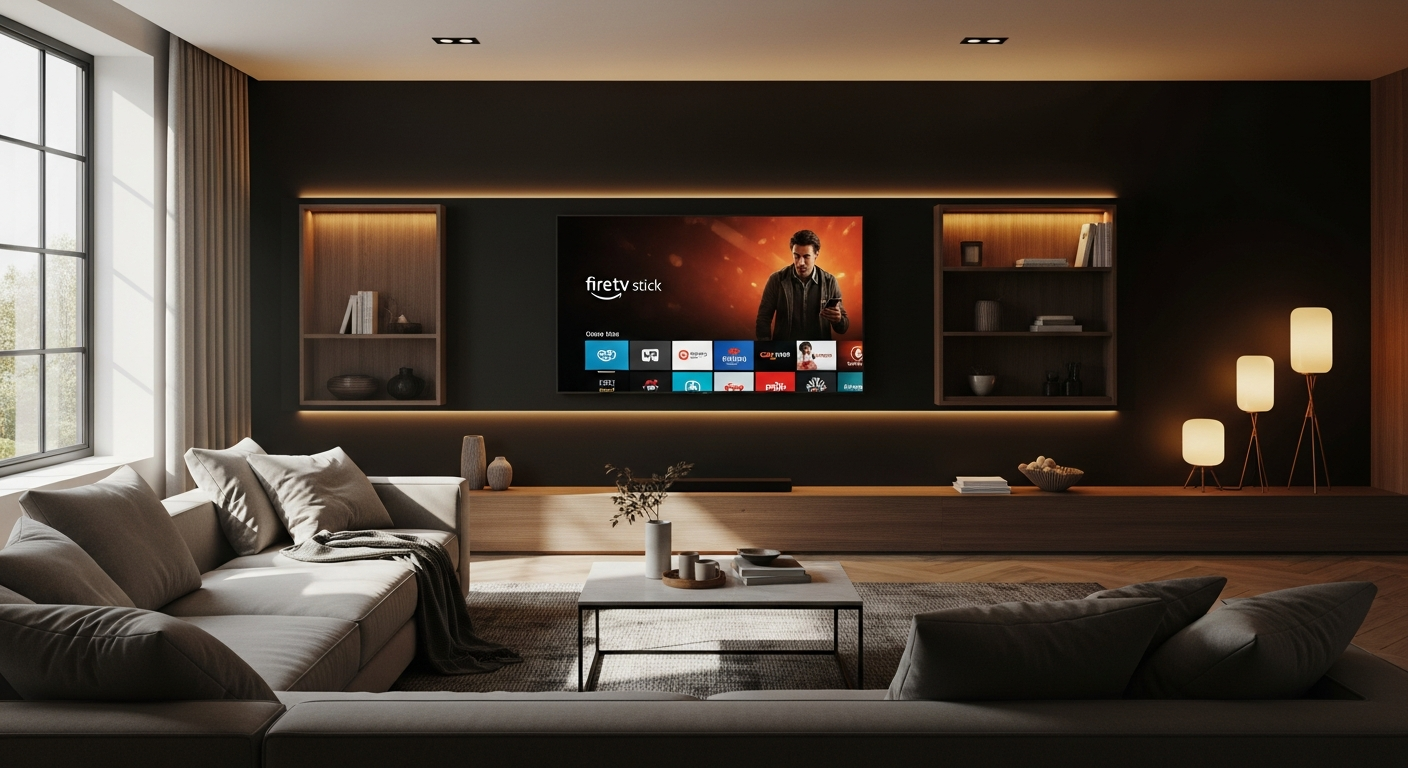
Amazon Fire TV Stick 4K device displayed next to a modern television setup with soundbar and smart home devices

How to Build Your Dream Home Theater Setup With the Amazon Fire TV Stick 4K

Physical Installation Process and HDMI Port Positioning

Getting your Fire TV Stick 4K up and running takes minutes, not hours. The stick plugs directly into your TV’s HDMI port, eliminating the need for external boxes or complicated cable management. Position it horizontally if your TV has side-by-side HDMI ports, or use the included HDMI extender if your ports are tightly clustered or located behind other equipment. This small decision prevents overheating and ensures your remote’s infrared signal reaches the device without obstruction.

Wi-Fi 6 and Wi-Fi 6E Connectivity Setup for Uninterrupted 4K Streaming

Wi-Fi quality makes or breaks your 4K streaming experience. The Fire TV Stick 4K supports Wi-Fi 6, while the 4K Max upgrades to Wi-Fi 6E, both delivering faster speeds and more stable connections. During initial setup, connect to your strongest Wi-Fi network and position your router within reasonable range of your TV. If you’re streaming in a larger home with signal weak spots, consider a mesh Wi-Fi system or moving your router to a central location. Strong connectivity prevents buffering and ensures your 4K content streams smoothly without interruption.

Initial Configuration With Your Amazon Account and Alexa Integration

Once powered on, you’ll sign into your Amazon account and link your Alexa profile. This single step unlocks voice control, enables personalized recommendations, and syncs your watchlist across devices. The Alexa Voice Remote comes paired and ready to use—no additional setup required. Enable notifications if you want alerts about new releases or content recommendations, and customize your preferences to control what Amazon suggests on your home screen.

Explore the Fire TV Stick 4K on Amazon Canada today.

Unlocking 4K and HDR Capabilities: The Technical Side

Understanding 4K Ultra HD, Dolby Vision, HDR10+, and HLG Standards

The Fire TV Stick 4K supports multiple video standards that deliver stunning visual quality. 4K Ultra HD provides four times the resolution of standard HD, revealing details previously invisible on your screen. Dolby Vision adds dynamic metadata that optimizes brightness and color on a frame-by-frame basis, creating images that pop with realism. HDR10+ enhances contrast and color accuracy, while HLG (Hybrid Log-Gamma) rounds out the compatibility options. Each standard elevates your viewing experience, transforming how you perceive movies and shows.

TV Compatibility Requirements for Full 4K Resolution Support

Not all televisions are created equal when it comes to 4K playback. Your TV needs HDMI 2.0 or higher ports to support full 4K resolution—most TVs manufactured after 2015 meet this requirement. Check your manual or TV settings to confirm your HDMI port specifications. Beyond the port, your TV’s panel matters: LED, QLED, and OLED models all display 4K content beautifully, though higher-end panels showcase the full visual benefits. If your TV predates 4K technology, the Fire TV Stick still works, though it outputs in whatever resolution your TV supports.

HDMI Cable Specifications Needed for 4K Streaming Without Quality Loss

Here’s where many people stumble: not all HDMI cables are equal. Standard HDMI cables work for HD content, but 4K demands High-Speed HDMI cables (rated for at least 18 Gbps bandwidth). The Fire TV Stick 4K package typically includes a proper cable, but if you’re using an older cable, replace it. A substandard cable introduces artifacts, color banding, or complete signal loss—ruining the visual experience you’re paying for. Invest in a certified High-Speed HDMI 2.0 cable under 10 meters in length, and your 4K streams will render flawlessly.

Creating Your Perfect Audio Experience With Dolby Atmos

Dolby Atmos Support and Compatible Content Libraries

Sound transforms how you experience entertainment. The Fire TV Stick 4K supports Dolby Atmos, a spatial audio technology that places sound around you rather than just in front. Content from Netflix, Disney+, Prime Video, and Apple TV+ increasingly features Dolby Atmos tracks. When you play Atmos content on compatible speakers, you’ll hear helicopters overhead, rain surrounding you, and dialogue pin-pointed in three-dimensional space. This immersive layer elevates action sequences, documentaries, and dramatic scenes beyond what traditional stereo can achieve.

7.1 Surround Sound Setup Options for Immersive Listening

Traditional 7.1 surround sound creates a cinema-like environment through multiple speakers positioned around your room. The Fire TV Stick 4K decodes 7.1 audio and sends it to compatible receivers or soundbar systems. Setting up surround involves placing left, center, and right speakers across the front of your room, adding surround speakers to the sides, and positioning rear surrounds if space allows. Height speakers elevate the experience further, especially with Atmos content. Your receiver handles the complex audio routing automatically once configured.

Pairing External Soundbars and Home Theater Systems Via Bluetooth 5.0/5.2

Wireless connection simplifies setup considerably. The Fire TV Stick 4K’s Bluetooth 5.0 (standard model) or 5.2 (4K Max) enables seamless pairing with soundbars, wireless speakers, and receivers. Navigate to Settings > Audio > Bluetooth Devices, then put your soundbar into pairing mode and select it from the available devices list. Bluetooth latency is minimal on modern audio equipment, meaning audio stays synchronized with video. If your soundbar supports advanced codecs like aptX, you’ll get the best possible wireless audio quality. Alternatively, use HDMI eARC ports on newer TVs to send high-quality audio directly from your TV to a soundbar or receiver, bypassing the stick entirely.

Start building your home theater setup with the Fire TV Stick 4K available on Amazon Canada.

Pre-installed Apps and Essential Streaming Services

Your Fire TV Stick arrives with immediate access to Netflix, Disney+, Prime Video, Crave, Apple TV+, Paramount+, and YouTube pre-installed or easily downloadable. This covers the major players covering everything from blockbuster movies to prestige television. Prime Video deserves special mention since it’s bundled with Amazon Prime membership—you get thousands of films and shows at no additional cost if you’re already a subscriber. Spotify and music apps round out the ecosystem, transforming your TV into an entertainment hub.

Accessing Free Ad-Supported Content Through CBC Gem, Tubi, and Pluto TV

Budget-conscious streamers shouldn’t overlook free ad-supported options. CBC Gem offers Canadian content including hockey, documentaries, and dramas without subscription fees. Tubi provides thousands of movies across every genre imaginable, funded entirely by brief advertisements. Pluto TV delivers live channels mimicking traditional cable, curated into themed collections. These services require tolerance for ads, but the content variety justifies the interruptions. Many users maintain subscriptions to two or three paid services while supplementing with free options to maximize their viewing choices without overspending.

Organizing Your Home Screen for Quick Access to Favorite Services

The Fire TV Stick’s home screen adapts to your preferences. You can customize which apps appear on your top row, organize favorites, and remove apps you never use. Pin your most-watched services to the front, arrange them by viewing frequency, and hide rarely-used apps in the full app list. This organization prevents endless scrolling and makes finding content faster. Your watch history and recommendations populate based on viewing patterns, becoming increasingly accurate over time.

Voice Control and Smart Home Integration Beyond Entertainment

Using Alexa Voice Remote for Hands-Free Content Search and Playback

The Alexa Voice Remote transforms how you interact with content. Instead of hunting through menus, simply press the microphone button and say what you want: “Play The Office,” “Show me action movies,” or “What’s new on Netflix.” Alexa understands natural language, searches across all your apps simultaneously, and returns results ranking the best matches. You can pause, rewind, fast-forward, and adjust volume entirely through voice commands. For anyone tired of remote button mashing, this hands-free control becomes indispensable.

Dedicated Streaming Service Buttons for One-Tap Access

Most Alexa Voice Remotes include dedicated buttons for Netflix, Prime Video, Disney+, and other major services. These shortcuts bypass the home screen entirely, launching apps instantly with a single press. This convenience accelerates your path from couch to content, reducing friction in your entertainment routine. The buttons adapt based on your region and service availability, ensuring you get shortcuts matching your subscription mix.

Integrating Fire TV Stick 4K With Other Alexa-Enabled Smart Home Devices

The Fire TV Stick becomes your entertainment command center for an entire Alexa ecosystem. Control smart lights, thermostats, locks, and cameras through voice commands spoken to your TV. Lower the lights automatically when starting a movie, adjust temperature, or check security cameras without leaving your seat. This integration transforms your living room into a connected environment where entertainment and home automation work together seamlessly.

Portability and Flexibility: Taking Your Streaming Anywhere

Compact Stick Design and Minimal Cable Requirements

The Fire TV Stick’s physical footprint rivals a large USB drive. It plugs into any HDMI port and requires only a power adapter and Wi-Fi connection—no bulky external boxes or tangled cable nests. This portability means you can carry it between rooms, take it to a vacation rental, or bring it to a friend’s house. Setup takes seconds: plug it in, connect to Wi-Fi, and sign into your Amazon account. Your personalized settings, watchlist, and preferences follow you automatically.

Using Fire TV Stick 4K in Multiple Rooms or While Traveling

Own multiple Fire TV Sticks to place in different rooms, or transport one where needed. Your Amazon account syncs everything across devices—resume watching a show in the bedroom from where you left off in the living room. While traveling, connect to hotel or vacation rental Wi-Fi and access your full content library immediately. The device adapts to any television supporting HDMI, making it a true nomadic streaming solution. This flexibility transforms any TV into your personal entertainment system.

Switching Between Different TVs Without Complex Reconfiguration

Moving your Fire TV Stick between televisions requires no reconfiguration. Unplug from one TV, plug into another, and everything loads exactly as you left it. No account re-entry, no app reinstallation, no preference resetting—just instant familiarity and accessibility. This simplicity makes the stick ideal for households with multiple televisions or for anyone who values portability.

Value Proposition: Why the Fire TV Stick 4K Wins on Price and Performance

Cost Comparison With Competing Streaming Devices

The Fire TV Stick 4K typically costs between $59.99 and $80 CAD, dramatically undercutting competitors. Roku’s 4K models start around $90, Apple TV 4K begins at $200, and Google Chromecast with Google TV sits around $55 but lacks the raw performance of the Fire TV Stick 4K. For the price point, you’re getting exceptional specifications—quad-core processor, Wi-Fi 6 connectivity, and 4K HDR support. No other device delivers this performance tier at this price.

Performance Benchmarks and Real-World Speed Tests

Real-world usage reveals the Fire TV Stick 4K’s strength. Apps launch in seconds rather than minutes. Menu navigation feels responsive. 4K content streams without stuttering on solid Wi-Fi connections. The quad-core 1.7 GHz processor (2.0 GHz on the 4K Max) handles multitasking smoothly. Compared to older streaming devices or budget competitors, the performance difference is immediately noticeable. Where budget devices stumble with lag and slow loading, the Fire TV Stick 4K maintains fluidity throughout your viewing session.

Return on Investment for Cord-Cutters Switching From Cable

The math favors cord-cutting decisively. Average cable subscriptions cost $100–150 monthly. Bundling Netflix ($15), Disney+ ($12), and Prime Video ($11) still costs less than a week of cable. Pair that with free services like Tubi and CBC Gem, and your entertainment spending drops 60–70% versus traditional cable. The $60–80 Fire TV Stick pays for itself within weeks. Over a year, you’ll save $1,000 or more while accessing arguably superior content selection and on-demand convenience. This device isn’t just entertainment—it’s a financial decision that protects your wallet long-term.

The Bottom Line: Your Path to Affordable Home Theater

The Amazon Fire TV Stick 4K isn’t just a streaming device—it’s a gateway to entertainment freedom at a price point that makes premium content accessible to everyone. Whether you’re building your first home theater setup or upgrading from an older streaming device, this solution adapts to your needs without demanding a second mortgage. Start with the fundamentals covered in this guide—solid Wi-Fi connectivity, proper audio pairing, and a strategic app selection. Your future self will thank you when you’re enjoying 4K movies and shows without the cable company’s monthly bill hanging over your head.

Order your Fire TV Stick 4K from Amazon Canada now and join the streaming revolution.


Comments

Leave a Reply

Your email address will not be published. Required fields are marked *