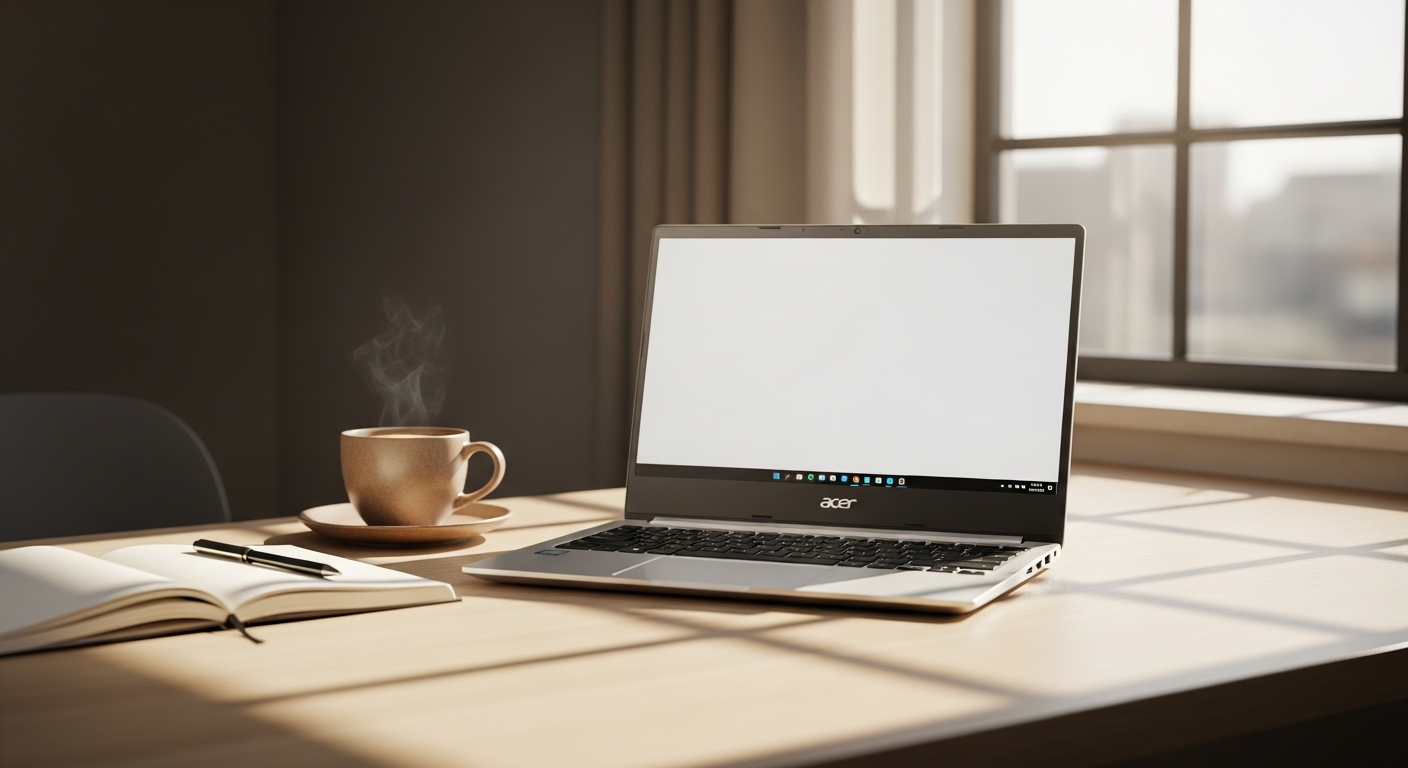
Analyzing the Acer Aspire ES 15: A Comprehensive Budget Laptop Breakdown
Over 40 million students and remote workers worldwide rely on budget laptops under $400 to handle their daily workload—yet most struggle to find a device that actually delivers without constant frustration. The market for affordable computing continues to grow as more people recognize that premium specs don't always align with real-world needs. A solid entry-level laptop can be the difference between struggling through assignments or work tasks and completing them efficiently.
The Acer Aspire ES 15 has carved out a reputation as one of the most accessible entry-level laptops on the market, with models like the ES1-572-31KW becoming bestsellers among budget-conscious buyers. This particular device emerged as a popular choice specifically because it balances affordability with the fundamental computing power required for everyday activities. Countless students, home office professionals, and first-time laptop buyers have turned to this model when seeking reliable performance without breaking their budgets.
Explore the Acer Aspire ES 15 on the official Acer store to find current models and pricing.
Who Should Actually Buy the Acer Aspire ES 15?
This laptop serves a specific audience whose computing needs remain relatively straightforward. Students tackling essays, research, and online coursework find the Aspire ES 15 particularly useful since it handles productivity software without complaint. Remote workers managing email, spreadsheets, and video conferencing benefit from its portability and reliable performance for standard office applications.
Casual users streaming content and browsing the web experience smooth playback and responsive navigation. First-time laptop buyers seeking an affordable entry point appreciate the full Windows experience without premium pricing. Home office professionals with lightweight computing demands discover that this device handles their daily workflow without requiring expensive upgrades.
Seniors needing a straightforward, no-frills Windows machine appreciate the simplicity and familiar operating system. Budget-conscious families seeking a secondary device for shared use find significant value in its accessibility. Content consumers—those focused on Netflix, YouTube, and social media rather than content creation—discover this device perfectly matches their actual usage patterns.
Hardware Breakdown: What You're Actually Getting
The Acer Aspire ES 15 features a 15.6-inch display with 1366×768 resolution, the standard 720p offering found across most budget devices in this category. Under the hood sits either an Intel Celeron or Core i3 processor, typically the 6th-generation i3-6006U or 8th-generation i3-8130U depending on your model year. RAM configurations vary, with base models starting at 2GB and standard configurations offering 4GB, both of which remain upgradeable for users willing to open the chassis.
Storage options include 500GB or 1TB HDD configurations, though some variants offer SSD alternatives that significantly improve responsiveness. The device runs Windows 10 Home as its operating system, providing full access to the Windows ecosystem and software library. At approximately 5.3 pounds, the laptop achieves reasonable portability without feeling ultralight or flimsy.
Build quality surprises many budget buyers—the construction feels sturdy and reliable despite the modest price tag. Thermal management operates quietly during typical use, with the cooling system effectively handling everyday computing demands without excessive fan noise.
Connectivity and Practical Features That Matter
The Aspire ES 15 excels in connectivity options, offering both USB 3.0 and USB 2.0 ports for external devices and peripherals. HDMI output enables connecting external monitors or projectors, useful for presentations or expanded workspace. An Ethernet (LAN) port provides stable wired internet connection when Wi-Fi becomes unreliable—a practical feature increasingly rare in modern devices.
The SD card reader facilitates photo and file transfers directly from cameras and memory cards. Bluetooth 4.0+ support enables wireless accessories including mice, headphones, and keyboards. Standard Wi-Fi connectivity handles typical browsing and streaming without issues. Select models include a DVD drive, a feature that has largely disappeared from contemporary laptops but remains useful for users with physical media libraries.
The audio jack and built-in speakers provide adequate volume for basic video calls and media consumption, though audio quality remains modest compared to devices at higher price points.
Real Performance: Where the Acer Aspire ES 15 Excels
The Aspire ES 15 handles web browsing with multiple tabs open without significant lag, making research and content consumption smooth experiences. Microsoft Office applications including Word, Excel, and PowerPoint run smoothly without noticeable delays. Video streaming services like Netflix, YouTube, and Hulu play at standard quality without stuttering or buffering interruptions.
Email management and productivity software operate responsively, supporting efficient workflow without frustration. Light photo viewing and basic image editing remain manageable for casual hobbyists. PDF reading and document management work flawlessly, making this an excellent device for research and study. Video conferencing platforms including Zoom, Teams, and Google Meet function adequately for general use, though audio and video quality lag behind premium devices.
General multitasking for everyday computing—combining web browsing, document work, and media consumption—proceeds without system slowdowns. The responsive touchpad ensures comfortable navigation throughout daily tasks.
Check current availability and specifications on the Acer official store.
Performance Ceiling: What This Laptop Cannot Handle
Gaming beyond lightweight titles or older games quickly reveals this device's limitations. Video editing and 4K content creation push the hardware beyond its capabilities, resulting in sluggish timelines and extended render times. Professional design work using Photoshop or CAD software becomes frustrating due to memory and processing constraints.
Heavy software compilation or development environments struggle with the modest processor and RAM. Virtualization or running multiple virtual machines simultaneously consumes resources faster than the hardware can manage. Cryptocurrency mining or intensive processing tasks bring the system to its knees. Demanding 3D rendering or animation work remains completely impractical on this platform.
Large-scale data analysis or database management overwhelms the system, and running multiple resource-heavy applications simultaneously causes noticeable performance degradation.
Battery Life Reality vs. Marketing Claims
Manufacturer estimates advertise 7-8 hours of battery life, yet real-world performance typically delivers 5-6 hours under standard use. Screen brightness, Wi-Fi usage, and application load significantly affect battery longevity—dimming the display and reducing background processes extends runtime noticeably.
Battery degradation occurs over time, a common characteristic of budget models where power management technology receives less attention than premium devices. Full charging requires approximately 2-3 hours, making midday recharges inconvenient during longer work or study sessions.
Power-saving modes and optimization tips can extend battery life modestly, but realistic expectations should center around 5-6 hours for typical workloads. Replacement batteries remain available and relatively affordable, typically costing $20-40, though longevity expectations for the original battery span 2-3 years before noticeable decline becomes apparent.
Display Quality and Visual Experience
The 1366×768 resolution proves adequate for general computing tasks, supporting comfortable work with documents, spreadsheets, and web content. A matte finish reduces glare and reflections, creating a practical display surface particularly beneficial in office environments and brightly lit spaces. Color accuracy suffices for everyday tasks but falls short for professional design or photo editing work requiring precise color representation.
Brightness levels remain moderate, suitable for indoor use but potentially frustrating in direct sunlight. Viewing angles approximate standard IPS-type panels on newer models, allowing comfortable viewing from different positions. The 15.6-inch screen size provides a comfortable workspace advantage over smaller 13-inch models while maintaining reasonable portability.
Text clarity for document work and web browsing meets professional standards, and video playback quality for streaming services appears clear despite modest resolution.
Keyboard, Trackpad, and Input Quality
The responsive touchpad delivers smooth tracking and handles most navigation tasks intuitively. Standard QWERTY keyboard layout appears on all models, though occasional spacing quirks emerge on certain production batches. Key travel varies across production runs, with some models featuring spongy keys that lack the satisfying feedback of mechanical switches.
Typing comfort works adequately for casual use, yet extended writing sessions reveal limitations compared to premium keyboards. The generous trackpad size exceeds expectations for a budget device, and multi-touch gesture support appears on compatible models. Durability concerns arise with heavy daily keyboard use—some users report key degradation after extended periods.
External keyboard investment becomes worthwhile for users planning extended typing sessions, transforming the laptop into a more pleasant writing environment.
Audio and Webcam: The Weak Points
Built-in speakers provide adequate volume but offer limited bass and clarity, resulting in thin audio reproduction. Microphone quality falls below average for video calls, often picking up background noise and lacking clarity for the person on the receiving end. Webcam resolution typically maxes out at basic VGA or 720p, producing grainy video quality that appears unprofessional.
Webcam performance struggles noticeably in low-light conditions, making evening video calls particularly problematic. Audio feedback occasionally manifests as noticeable hum or interference in some units, a quality control issue affecting a subset of devices. Workaround solutions include purchasing external USB microphones and webcams, which transform video conferencing experiences dramatically.
The impact on video conferencing becomes apparent immediately when using the built-in camera and microphone—colleagues and clients notice the degraded quality. Professional users should view external peripherals as essential additions rather than optional upgrades.
Price-to-Value Analysis: Is It Worth the Investment?
The Aspire ES 15 positions itself firmly in the entry-level market, typically retailing under $400 USD or £200 GBP, making it exceptionally accessible for budget-conscious buyers. The value proposition centers on delivering a full Windows experience at a price point that doesn't require financial strain. Competitive alternatives in the sub-$400 range include the Lenovo IdeaPad 3 and HP 15-inch models, though the Aspire ES 15 holds its own in this crowded segment.
Long-term cost of ownership extends beyond purchase price—repairs, upgrades, and eventual replacement factor into true expenses. Resale value depreciates along a predictable timeline, with used models typically selling for 30-50% of original price. Total cost comparison against Chromebooks reveals the Windows advantage, though Chromebooks offer lower initial investment and reduced maintenance.
Hidden costs emerge through accessory needs (external mouse, carrying case, potentially upgraded RAM or SSD), software purchases for specific needs, and potential repair expenses. Best timing for purchase aligns with seasonal sales and promotional periods, where discounts can reduce effective cost by 15-25%.
Common Issues and Troubleshooting
Slowdown and sluggishness develop over extended use as the system accumulates software and temporary files. Internet connectivity drops or Wi-Fi instability plague some units, though driver updates often resolve these issues. Thermal throttling during sustained activity reduces performance as temperatures climb, particularly during longer work sessions.
Hard drive failures occur more frequently on HDD models compared to SSD variants, a known limitation of mechanical storage technology. Software bloatware shipped with the device impacts performance noticeably—removing unnecessary applications improves responsiveness dramatically. Driver update challenges and compatibility issues occasionally emerge when updating Windows or installing new software.
RAM limitations become apparent when running multiple applications simultaneously, particularly browser-heavy workflows. Solutions include factory reset to restore baseline performance, SSD upgrade for dramatically improved responsiveness, or RAM expansion to 8GB for more comfortable multitasking.
Upgrade and Longevity Considerations
Most models support RAM upgrades up to 8GB or 16GB, a straightforward enhancement that any user can accomplish with minimal technical skill. Storage upgrade from HDD to SSD replacement significantly boosts overall performance—this single improvement transforms the device's responsiveness more than any other modification.
Thermal paste replacement improves cooling efficiency, though this requires more technical comfort than RAM upgrades. Battery replacement availability ensures long-term usability once the original battery degrades. Windows 10 support continues through 2025, though future OS compatibility depends on hardware specifications that may struggle with Windows 11 requirements.
Software optimization strategies for aging hardware include disabling visual effects, removing startup applications, and regularly clearing temporary files. Expected lifespan with proper maintenance spans 3-5 years, after which hardware degradation becomes noticeable. Upgrade thresholds arrive when performance degradation interferes with daily tasks or when battery life drops below 3 hours.
Comparing the Acer Aspire ES 15 to Budget Alternatives
The Lenovo IdeaPad 3 offers similar specs with different brand loyalty and customer support approaches. HP 15-inch models provide comparable features and pricing with alternative design aesthetics. ASUS VivoBook 15 occupies a slightly higher performance tier while maintaining budget-friendly positioning.
Dell Inspiron 15 series provides broader configuration options, allowing more customization of specs at purchase time. Chromebooks deliver lower cost but sacrifice Windows compatibility and offline functionality. Refurbished premium laptops offer better specifications and build quality while introducing warranty and availability concerns.
Tablets with keyboards prioritize portability over full computing functionality, creating trade-offs between form factor and capability. Feature-by-feature breakdown reveals that the Aspire ES 15 balances cost and capability more effectively than most alternatives in its price range.
Student-Specific Use Cases and Recommendations
Online learning platforms and virtual classroom compatibility work seamlessly with the Aspire ES 15's Windows environment. Research and note-taking applications function smoothly, supporting efficient studying and assignment preparation. Assignment submission and document collaboration tools like Google Workspace and Microsoft 365 operate without performance issues.
Video conferencing for classes and group projects proceeds adequately, though external microphone investment improves peer perception noticeably. Lightweight programming and coding environments accommodate introductory computer science courses, though advanced development becomes challenging. Academic writing and citation software including Microsoft Word and specialized tools like Zotero runs without concern.
Study organization and productivity apps maintain efficiency, and dorm room considerations regarding size, weight, and durability make the Aspire ES 15 an excellent fit. The 15.6-inch display provides comfortable studying space while remaining reasonably portable between classes.
Home Office and Remote Work Suitability
Productivity software compatibility covers standard business applications across all major platforms. Video conferencing stability for Zoom, Teams, and Google Meet remains solid for typical usage, though the built-in camera quality hampers professional appearance. Multi-monitor setup potential via HDMI enables expanded workspace, transforming the experience significantly.
Ergonomic considerations for extended work sessions require external keyboard and mouse investment, essential for comfortable all-day computing. Noise levels during operation remain acceptable, with fan activity occurring primarily during heavier tasks. Heat dissipation during full workday use proceeds adequately for standard office work, though sustained intensive tasks cause noticeable warmth.
VPN and security software compatibility poses no issues, enabling secure remote work connections. Professional appearance during client-facing video calls requires external camera investment—the built-in webcam would undermine your credibility with demanding clients.
Making Your Final Decision: Key Questions to Ask
Clarify what specific tasks occupy your daily usage—essays and browsing differ greatly from video editing and gaming. Honestly assess whether you can tolerate average battery life and potential slowdowns that develop over time. Determine your comfort level with upgrading RAM or storage yourself, as DIY upgrades provide significant value.
Evaluate whether you need gaming or professional software capabilities that exceed this device's capabilities. Prioritize portability if you're moving between locations frequently, or accept stationary placement if it stays primarily in one room. Calculate realistic budget including essential peripherals like external keyboard, mouse, and potentially camera and microphone.
Project how long you reasonably expect to keep this laptop, informing purchase decisions around longevity and upgrade potential. Consider whether warranty and customer support matter significantly for your risk tolerance and support needs.
The Bottom Line: Is the Acer Aspire ES 15 Your Best Budget Option?
The Acer Aspire ES 15 delivers exactly what it promises—a functional, affordable Windows laptop for everyday computing without the financial sting. For students grinding through coursework, remote workers handling email and spreadsheets, and casual users streaming content, this machine checks the boxes. The device's accessibility, reliable performance for standard tasks, and comprehensive connectivity options make it genuinely valuable for its price point.
However, reality diverges from marketing claims in meaningful ways. Battery life falls short of advertised claims, performance degrades noticeably over time, and the webcam quality embarrasses you during important video calls. Gaming, video editing, and heavy-duty applications remain completely off the table. The keyboard's spongy feel and modest thermal headroom during sustained work sessions reveal compromises necessary at this price point.
Before purchasing, honestly assess your workload and commit to considering external peripherals as essential additions rather than optional extras. Professional users should budget for external keyboard, mouse, microphone, and camera from the start. Watch for seasonal sales to maximize savings and stretch your budget further.
Prioritize the RAM upgrade above all others—expanding from 4GB to 8GB provides the single best investment for this device's longevity and responsiveness. An SSD upgrade follows as the second-priority improvement, transforming overall system performance dramatically. With these upgrades and realistic expectations aligned to actual capabilities, the Aspire ES 15 becomes a genuinely capable budget laptop that serves its audience well.
Leave a Reply