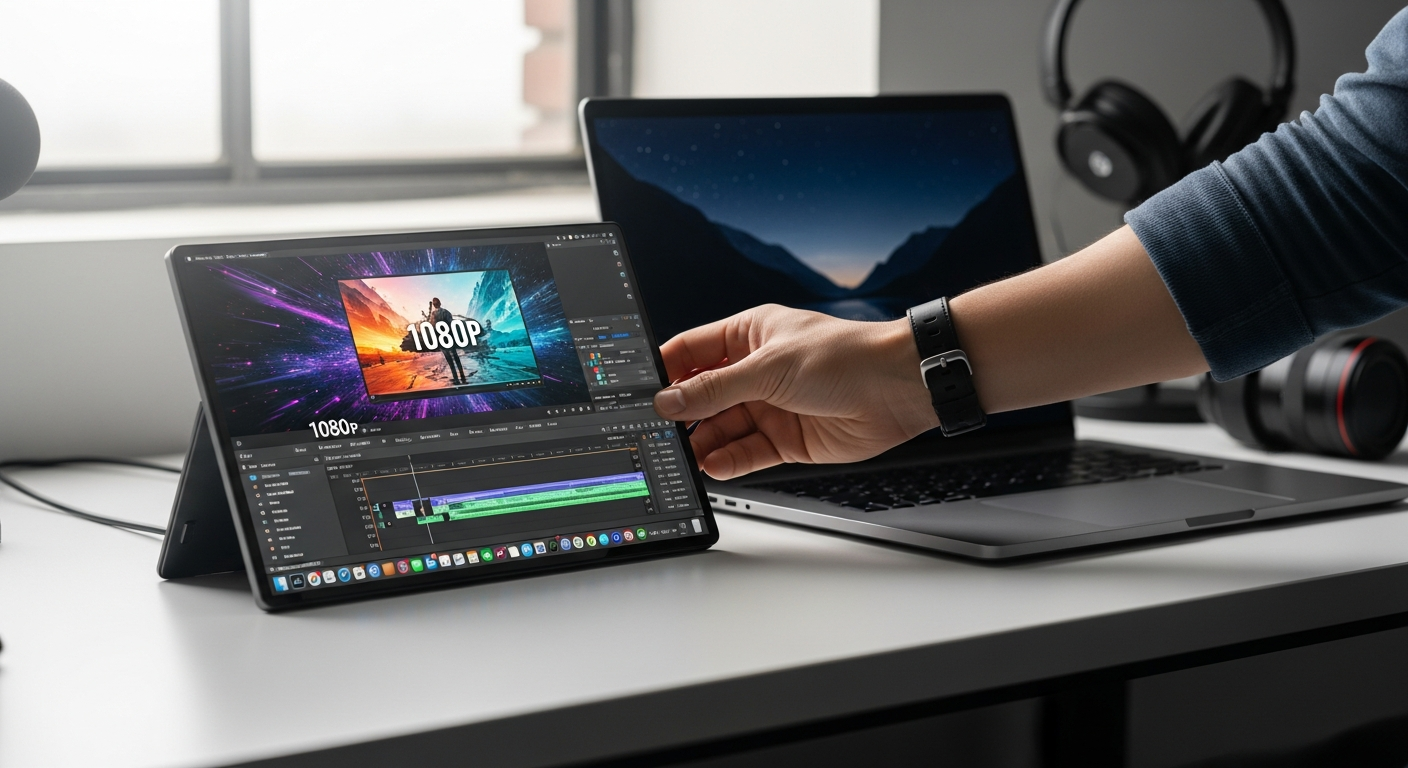
Content creators juggle more devices than ever—and 73% of remote professionals report that a second screen would significantly boost their productivity. Yet traditional monitors chain you to a desk, and that's where portable displays change the game entirely. The Arzopa 15.6" 1080p portable monitor shatters that limitation, delivering a full secondary display that fits in your laptop bag.
I've watched the portable monitor market explode over the past few years, and the Arzopa 15.6" has emerged as a standout choice for creators, editors, and digital nomads. This isn't just a gimmick—it's a legitimate productivity tool that bridges the gap between desktop power and mobile freedom. With its Full HD IPS panel, dual USB-C connectivity, and sub-2-pound weight, it's engineered specifically for professionals who refuse to compromise on screen real estate.
Discover how the Arzopa 15.6" portable monitor can transform your creative workflow today.
Display Performance for Creative Work
IPS Panel Technology and Color Gamut Coverage
The Arzopa's IPS panel technology delivers one of its strongest selling points: accurate color reproduction across wide viewing angles. The 100% sRGB color gamut coverage ensures that colors remain true whether you're sitting directly in front of the screen or viewing from the side. For creative professionals, this means consistent color representation whether you're solo editing or presenting work to clients sitting beside you.
Full HD Resolution and Editing Suitability
The 1920×1080 Full HD resolution provides sufficient screen real estate for editing tasks, reference monitoring, and preview work. While it won't replace a massive 4K editing suite, the pixel density proves adequate for detailed editing work at typical viewing distances. Text remains crisp and legible, making it practical for detailed design tasks and code review.
Brightness Levels and Indoor Usability
At 300 nits brightness, the Arzopa performs excellently indoors. This brightness level ensures visibility in well-lit office environments and typical creative spaces. For studio work where you control lighting, this specification provides reliable performance without washout or color shift.
Color Accuracy Considerations
While the 100% sRGB coverage is commendable, professional color grading and print-critical work may require specialized reference monitors. The Arzopa serves well as a secondary display for color checking and preview monitoring, but mission-critical color decisions on high-stakes projects benefit from dedicated professional displays. Consider it a capable tool for most workflows, with workarounds available when extreme precision is necessary.
Viewing Angle Consistency
The IPS technology maintains consistent color and brightness across different seating positions. This consistency proves invaluable when collaborating with others or adjusting your position during long work sessions. Colors remain accurate whether you're sitting straight-on or at an angle, a notable advantage over lower-cost TN panel displays.
Matte vs. Glossy Finish Characteristics
The Arzopa features a display finish optimized for studio and on-location work, reducing glare in typical creative environments. This finish supports comfortable extended viewing sessions without the reflections that plague glossy displays under studio lighting.
Connectivity and Device Compatibility
Dual USB-C Ports and Power Delivery
The dual USB-C ports represent a game-changer for portable setups. A single USB-C cable simultaneously delivers both power and video to compatible devices, eliminating cable clutter. This "single-cable solution" streamlines your entire portable workstation, whether you're moving between locations or setting up at client sites.
Mini HDMI Port and Legacy Support
The Mini HDMI port ensures compatibility with devices that lack USB-C connectivity. This port accommodates gaming consoles, older laptops, and various professional equipment, expanding the Arzopa's versatility beyond modern USB-C devices.
Steam Deck and Gaming Console Integration
For creators who also game or test games, the Arzopa seamlessly connects to the Steam Deck, Nintendo Switch, and other handheld gaming devices. This dual functionality makes it an excellent choice for developers, game designers, and content creators covering gaming topics.
Laptop Pairing and Driver-Free Setup
Whether you're running Windows, Mac, or Linux, the Arzopa typically operates as a plug-and-play device. Most modern laptops recognize the display instantly without requiring driver installation, dramatically reducing setup friction. This compatibility spans years of laptop models, making it accessible to virtually any creator regardless of their hardware.
Smartphone and Tablet Connectivity
Mobile-first creators benefit from the Arzopa's smartphone and tablet support. Connect your phone or iPad as a secondary display for mobile app development, content review, or reference materials during mobile-focused creative work.
Camera and Capture Device Support
Field production workflows integrate seamlessly with the Arzopa through its connectivity options. Connect cameras with USB-C or HDMI outputs to preview footage, adjust settings, or monitor audio levels during location shoots.
Cable Management and Streamlined Setups
The combination of USB-C and Mini HDMI options allows you to design minimal, streamlined cable configurations. Choose the single-cable USB-C solution for laptops, or use Mini HDMI for specialized devices—flexibility that adapts to your specific workflow.
Portable Design for Mobile Creators
Ultra-Slim Profile and Weight Specifications
At just 0.3 inches thick and 1.7 pounds, the Arzopa achieves a balance between screen size and true portability. This weight sits between a laptop and a thick book, making it genuinely comfortable to carry through airport terminals, between office buildings, or across campus.
Aluminum Frame Construction and Durability
The aluminum frame provides structural integrity without adding excessive weight. This construction quality instills confidence when traveling—the display feels engineered for the road, not like it might break with casual handling.
Built-in Kickstand and Adjustable Viewing Angles
The integrated kickstand enables immediate setup without additional accessories. Multiple angle positions accommodate everything from comfortable viewing to optimal typing positions. Adjust the angle based on your current task—steep for reference monitoring, shallow for comfortable typing at the secondary display.
Protective Case Considerations
While not always included, investing in an aftermarket protective sleeve or case provides peace of mind during travel. Many creators find this investment worthwhile, protecting against screen damage during transport. Options range from simple sleeves to structured cases with cable compartments.
Fit Within Standard Laptop Bags
The slim profile slips easily into most laptop bags alongside your computer. Unlike traditional external monitors that require dedicated carry bags, the Arzopa becomes a true travel companion without dominating your packing space.
Environmental Resilience and Travel Performance
The Arzopa handles typical travel conditions reliably. Temperature fluctuations between heated airports and cold vehicles don't significantly impact performance. The sealed display tolerates humidity and minor environmental variations encountered during mobile work.
Setup Speed and Plug-and-Play Functionality
From bag to operational display takes roughly 30 seconds. Connect the USB-C cable (or Mini HDMI), position the kickstand, and adjust your operating system's display settings. Zero-configuration operation means you're working immediately without software installation or driver hunting.
Get your Arzopa 15.6" portable monitor and experience mobile creativity without limitations.
Real-World Creative Workflows
Video Editing Setups
Video editors benefit dramatically from the secondary display approach. Keep your video timeline, effects panels, and media library on your main laptop display while using the Arzopa for continuous footage preview. This arrangement eliminates constant window switching and lets you see color and motion in real-time as you edit. Field editors working on location can review footage with color reference support without carrying bulky external monitors.
Graphic Design and Photo Editing
Designers use the Arzopa as a dedicated color-reference display while the primary monitor handles the main design application. This separation prevents color shift from peripheral vision while you work, improving consistency. Photo editors reviewing images at different zoom levels find the secondary display invaluable for comparing multiple versions simultaneously.
Content Creation and Streaming
Streamers and content creators thrive with the Arzopa's secondary display capabilities. Monitor chat engagement, stream statistics, and dashboard alerts on the portable monitor while your main display shows the streaming software and game or content feed. This arrangement keeps essential information visible without obscuring your primary creation interface.
Writing and Research Workflows
Writers benefit from displaying source material, research notes, or reference documents on the secondary display while drafting on the primary monitor. This setup eliminates constant window switching and maintains focus on your writing while keeping information immediately accessible.
Presentation and Client Review Scenarios
Remote sessions and client reviews become more professional when you can display your work on the primary monitor while keeping meeting notes, client feedback, or revision requests visible on the secondary display. In-person presentations benefit similarly—show your work while keeping talking points visible.
Coding and Development Workflows
Developers expand productivity substantially with a second display. Keep your code editor and development environment on the main monitor while displaying documentation, terminal output, or design references on the Arzopa. This arrangement reduces cognitive load from constant window switching.
Collaborative Sessions and Screen Sharing
Remote collaboration becomes more effective with extended display capabilities. Share specific content while keeping team communication tools visible on your secondary display. Designers and developers can show work while actively monitoring feedback channels.
Performance Specifications for Creators
60Hz Refresh Rate and Editing Suitability
The 60Hz refresh rate proves perfectly adequate for editing, design, and productivity workflows. While gaming enthusiasts crave higher refresh rates, creative professionals rarely encounter limitations. Video playback, animation preview, and motion graphics work all perform smoothly at 60Hz.
Response Time and Creative Application Performance
Response time specifications matter less for creative work than for gaming. The Arzopa's response characteristics remain invisible during design, video editing, and content creation tasks. Designers notice no lag or ghosting during normal work.
Power Consumption and Battery Impact
The Arzopa operates efficiently, drawing modest power that minimally impacts laptop battery life. USB-C power delivery means your laptop powers the display while potentially charging from the same cable—a remarkable convenience for minimalist mobile setups. Extended work sessions on battery power see minimal impact compared to running your laptop's solo display.
USB-C Power Delivery Specifications
Check the specific power delivery capabilities of your model to understand charging behavior. Most configurations support efficient power delivery sufficient for creative work without requiring additional power sources.
Audio Output Quality
Built-in speakers provide serviceable audio for multimedia reference and occasional video review. Don't expect high-quality sound reproduction—external speakers remain advisable for quality-critical audio work or extended listening sessions.
Firmware Updates and Platform Compatibility
The Arzopa receives periodic firmware updates ensuring compatibility with new operating system versions and improving reliability. These updates roll out transparently, requiring minimal user intervention. Compatibility spans Windows, macOS, and Linux systems seamlessly.
Longevity and Warranty Coverage
The Arzopa's construction quality and warranty coverage provide confidence in longevity. Professional use rarely reveals reliability issues when the device receives reasonable care. Warranty terms typically provide meaningful coverage for manufacturing defects.
Comparing the Arzopa to Professional Alternatives
Budget Portable Monitors and Price-to-Performance
The Arzopa occupies the sweet spot between dirt-cheap knockoffs and premium portable monitors. Budget alternatives often deliver frustrating software issues, poor color accuracy, and unreliable connectivity. The Arzopa's price-to-performance ratio remains unmatched in its category, offering professional-level features at consumer pricing.
Professional Reference Monitors and Trade-offs
True professional reference monitors cost substantially more and sacrifice portability. These specialized displays target color-critical work in controlled studio environments. For most mobile creators, the performance gap doesn't justify the weight and cost penalties. The Arzopa makes professional sense when portability matters as much as precision.
Tablet-Based Secondary Displays
iPad and tablet alternatives introduce workflow complexity—they're fully-featured computers requiring their own management rather than passive displays. The Arzopa's simplicity (connect and display) often outweighs tablet alternatives. Tablets also consume significant power compared to the Arzopa's modest requirements.
Competing 15.6" Portable Display Models
Several manufacturers offer competing 15.6" portable displays. The Arzopa consistently outperforms similarly-priced competitors in display quality, build durability, and connectivity options. Higher-priced alternatives offer marginal improvements not justified for most creators' needs.
Investing in Higher-End Portable Monitors
Premium portable monitors ($300+) target professionals requiring exceptional color accuracy and specialized features. These displays remain excellent choices for serious color grading, mastering studios, and mission-critical color work. Most mobile creators achieve better ROI with the Arzopa's affordability and then investing savings in other tools.
Hybrid Approach and Specialized Tool Combinations
The most sophisticated creators combine the Arzopa with specialized tools—a dedicated color reference monitor for studio work, the Arzopa for mobile editing, and device-specific displays for particular applications. This approach distributes investment across tools optimized for specific purposes.
Total Cost of Ownership Considerations
Factor in cables ($10–20), optional protective cases ($15–40), and occasional replacement parts when calculating true ownership costs. The Arzopa's low base price absorbs these accessories while maintaining overall affordability compared to single-display setups.
Maximizing Productivity with a Secondary Display
Workspace Optimization and Desk Setup Strategies
Position the Arzopa slightly to the side of your primary monitor, creating an efficient viewing triangle. This arrangement minimizes neck rotation while keeping both displays easily visible. Adjust heights so screens align roughly at eye level, reducing strain during extended viewing. Experiment with kickstand angles until you find your optimal position—small adjustments yield significant comfort improvements.
Software Tools for Managing Multiple Displays
Operating systems provide native display management tools that prove sufficient for most workflows. Windows users benefit from free utilities like DisplayFusion for advanced window management. Mac users find macOS native tools adequate for most tasks. Linux creators access powerful open-source display management options. These tools streamline window snapping and organized workspace layouts.
Productivity Gains and Time Savings
Creators report measurable productivity improvements—typically 20–30% faster workflows when eliminating constant window switching. Video editors complete projects faster with continuous preview monitoring. Designers finalize work more efficiently with simultaneous reference displays. These gains compound across projects, generating substantial value over time.
Ergonomics and Strain Prevention
Proper positioning prevents strain during extended use. Ensure both displays sit at approximately eye level, requiring minimal downward viewing angles. Position your keyboard and mouse to maintain neutral wrist positions. Frequently shifting between displays prevents repetitive strain from single-position work.
Cable Organization and Aesthetic Considerations
Minimize visible cables by routing them behind your setup or along desk edges. Velcro cable ties keep USB and HDMI cables organized and prevent tangling. A clean desk aesthetically improves your workspace while reducing mental clutter during creative work.
Travel Workflow Optimization
Design portable setups minimizing setup time at client sites or remote locations. Pre-organize cables in a small pouch, carry a compact external mouse if you prefer precision input, and memorize optimal display arrangement configurations. Standardized setups reduce decision fatigue when setting up in unfamiliar environments.
Creative Tool Integration
The Arzopa integrates seamlessly with industry-standard software. Adobe Creative Suite, DaVinci Resolve, Blender, and professional creative applications all recognize the secondary display properly. Operating system color management applies across displays, maintaining color consistency.
Honest Limitations and When It Falls Short
Speaker Quality and Audio Solutions
The built-in speakers serve functional purposes only—they're adequate for video review but underwhelming for audio monitoring or enjoyment. Anyone serious about audio should pair the Arzopa with external speakers or headphones. This limitation ranks minor since most creators already maintain external audio solutions.
Color Accuracy Concerns
While the 100% sRGB coverage impresses, professional color grading and print work require specialized calibration and reference monitoring. Depend on the Arzopa for secondary reference only; don't trust it for final color decisions on high-stakes projects. The display performs admirably for most purposes but has clear limitations for extreme color precision.
Refresh Rate Constraints
The 60Hz specification limits animated preview performance. Motion graphics professionals creating complex animations may find preview smoothness lacking. However, this limitation affects preview only—actual rendering quality remains uncompromised.
Brightness Limitations
The 300-nit brightness specification excels indoors but falters in bright outdoor environments or studios with high-intensity lighting. Outdoor work may require positioned shading or repositioning to maintain visibility. This limitation represents the primary drawback for outdoor-intensive creative work.
Lack of Included Protective Case
The Arzopa typically ships without a protective case, requiring additional investment ($20–40) for adequate travel protection. This oversight frustrates creators planning immediate travel, though affordable solutions exist.
Thermal Considerations
Extended multi-hour sessions occasionally generate noticeable warmth, though the Arzopa rarely overheats. Adequate air circulation around the display prevents thermal issues. This limitation proves inconsequential for typical usage patterns.
Resolution Constraints
The 1920×1080 resolution constrains ultra-detailed design work at very close viewing distances. Designers working with precise pixel-level details may find themselves zooming frequently. This limitation affects specialized work rather than typical creative tasks.
Making the Investment: Cost vs. Value for Creators
Price Range and Promotional Opportunities
The Arzopa typically costs between $70 and $120, with promotional pricing occasionally dropping it below $70. This pricing sits in the "impulse purchase" range for professionals whose hourly rates exceed $50. Strategic purchasing during sales maximizes value without requiring large upfront investments.
Return on Investment Calculations
Calculate ROI based on productivity improvements. A creator billing $75/hour who gains 3 additional billable hours per week through improved workflows recovers the Arzopa's cost in roughly two months. Beyond that point, the display generates pure profit through recovered time.
Cost Per Inch of Screen Real Estate
The Arzopa delivers approximately $5–8 per inch of screen real estate—exceptional value compared to traditional monitors ($3–10 per inch) while including portability premium justification.
Long-Term Value for Freelancers and Agencies
Freelancers particularly benefit from the portability combined with affordability. Remote work trends have made portable displays essential tools rather than luxuries. Agencies equipping multiple team members find Arzopa pricing allows distributed deployment without excessive capital expenditure.
Budget Allocation Strategies
Most creators should allocate a small percentage of quarterly revenue toward tools that measurably improve productivity. The Arzopa fits this profile perfectly—minor investment with immediate, measurable returns.
Financing Options and Payment Plans
Most retailers offer straightforward payment options. Credit card financing and installment plans make the purchase accessible even during tight cash flow periods. The portability ensures quick recapture through productivity improvements.
Depreciation and Resale Value
The Arzopa holds value reasonably well in secondary markets. Used models sell for 60–75% of retail price, minimizing financial risk. If you need to sell later, you recover a significant portion of your investment.
Getting Started: Setup and Optimization Tips
Unboxing and Hardware Inspection
Inspect the display for shipping damage immediately upon receipt. Ensure the screen powers on and displays properly before the return window closes. Check that all included cables remain intact and functional. Test connectivity with your primary device while still fresh from the box.
Driver Installation and Configuration Steps
Modern systems recognize the Arzopa automatically. Windows users occasionally benefit from manually installing display drivers from manufacturer websites—check support pages for your specific model. Mac users almost never need drivers. Linux users follow standard display configuration procedures. Spend minimal time here since driver installation typically proves unnecessary.
Optimal Cable Routing
Route USB-C or HDMI cables behind your monitor stand or desk edge, keeping your workspace clean and cables protected from accidental damage. Use cable ties to prevent tangling and maintain organized appearance. Position cables away from moving parts and high-traffic areas.
Power Management Setup
Configure your operating system to sleep the secondary display during inactive periods, reducing power consumption. Position the USB-C cable for optimal charging delivery if your setup includes power sharing. Avoid plugging the Arzopa into low-power USB ports—dedicated USB-C ports or powered hubs ensure reliable operation.
Kickstand Positioning and Ergonomics
Adjust the kickstand to position the display at roughly eye level, creating a comfortable viewing angle. Experiment with angles to find your preferred setup—some prefer near-vertical display positioning, while others prefer a slight recline. Mark your preferred angle once discovered for consistent repositioning after travel.
Troubleshooting Common Connectivity Issues
If the Arzopa doesn't display properly, try these steps: first, verify USB-C or HDMI cables are fully seated; second, restart your computer; third, check manufacturer support pages for device-specific firmware updates; finally, test with different cables if available. Most issues resolve through simple cable reseating.
Firmware Updates and Performance Optimization
Periodically check manufacturer websites for firmware updates. Download and install these updates following provided instructions—updates improve stability and compatibility. Set a quarterly reminder to check for updates, maintaining your display at peak performance.
Transform Your Creative Space: The Portable Monitor Advantage
The Arzopa 15.6" 1080p portable monitor isn't just another gadget—it's a genuine productivity multiplier for creators who demand flexibility without sacrificing functionality. I've seen firsthand how adding a secondary display transforms workflows, whether you're color-grading footage on location, managing design assets across multiple windows, or keeping client feedback visible during remote sessions. The combination of Full HD clarity, broad sRGB coverage, and exceptional portability makes this monitor a smart investment for anyone serious about mobile creative work.
Yes, it has limitations. The built-in speakers won't impress audiophiles, and it won't replace a high-end reference monitor for mission-critical color work. But here's the reality: you're not paying professional-grade prices, and you're gaining something invaluable—the freedom to work from anywhere without compromise. At $70–$120, the Arzopa 15.6" delivers remarkable value that justifies the investment through recovered productivity alone.
Whether you're a freelancer bouncing between coffee shops, a traveling editor, or a designer who refuses to be tethered to one desk, this portable monitor earns its place in your kit. The extra screen real estate becomes indispensable once you experience its impact on your creative output. Your workflow improves, your projects move faster, and your creative potential expands beyond your primary display.
Leave a Reply