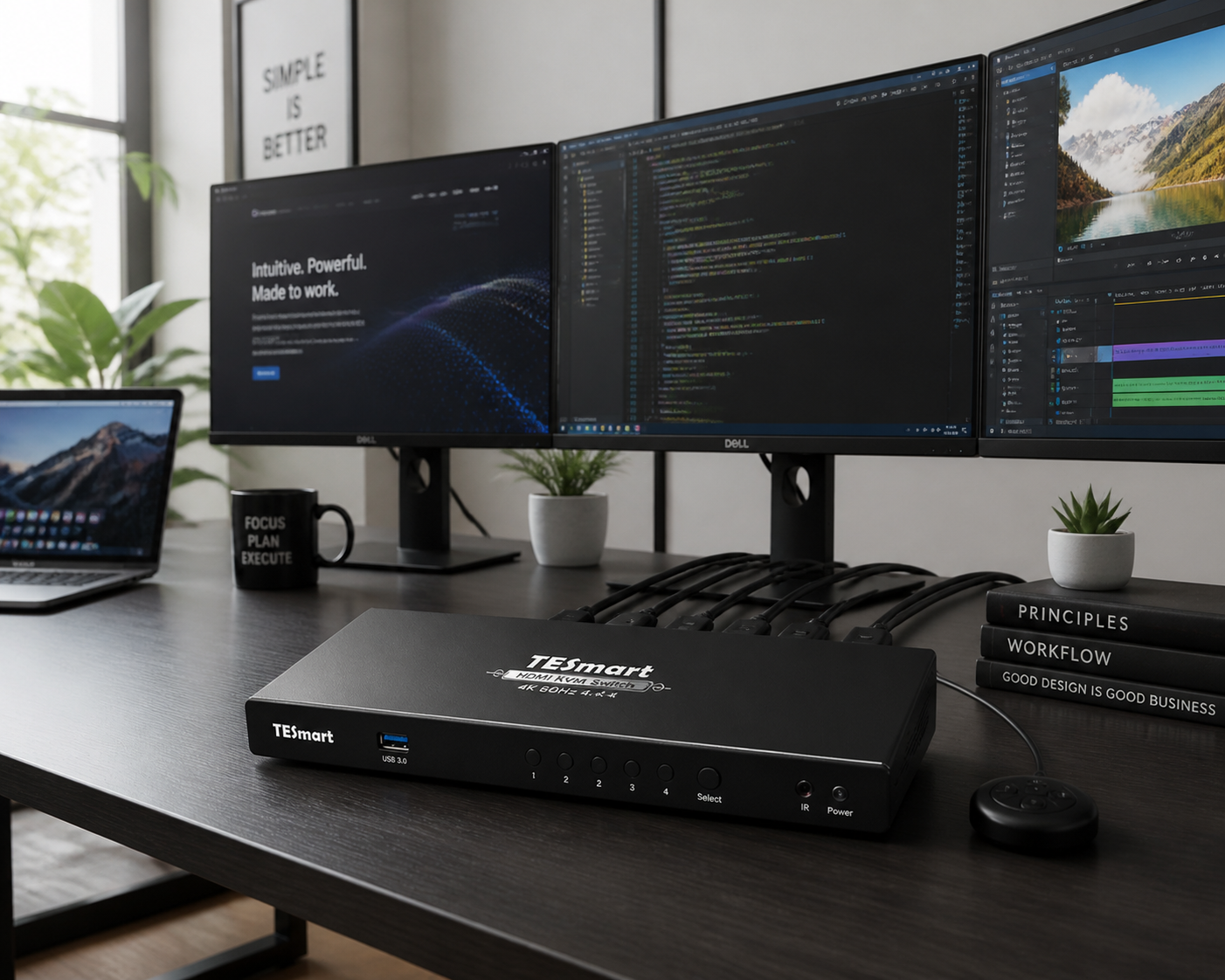
Juggling between three monitors, two keyboards, and a mouse for each computer? You're not alone. Studies show that professionals managing multiple systems waste an average of 40 minutes daily on cable swapping and device switching alone. A single keyboard, mouse, and monitor becomes genuinely achievable when you deploy a TESmart HDMI KVM switch to control 2, 4, 8, or more computers simultaneously.
They've become standard equipment in home offices, trading desks, IT departments, and professional workstations because they deliver real productivity gains without the enterprise price tag. This guide helps you understand what makes TESmart KVM switches tick—from their 4K video capabilities and switching methods to real-world performance across different setups.
You'll discover which models suit your needs, what to expect during setup, and whether this investment truly pays off for your workflow. Explore TESmart HDMI KVM switches today and transform your workspace.
Why Multi-Computer Control Matters for Modern Workspaces
The productivity cost of manual switching between systems and peripherals
Switching cables and peripherals between computers isn't simply tedious—it's a hidden drain on professional productivity. Each context switch triggers a mental cost, forcing your brain to refocus on the new system rather than the task at hand. Over an eight-hour workday, those 40-minute losses compound into significant time theft.
Common scenarios where KVM switches eliminate friction
Trading desks require lightning-fast switching between market feeds and execution terminals. IT professionals managing server configurations, security monitoring, and client support systems need instant access across multiple machines. Content creators juggling rendering workstations, editing systems, and asset management servers benefit from consolidated control. Each scenario involves the same friction point: peripheral management becomes the bottleneck, not the actual work.
How desk consolidation improves focus and reduces physical strain
A single keyboard and mouse mean fewer cables snaking across your desk, less reaching and repositioning, and clearer sightlines to your work. Physical strain from awkward positioning decreases noticeably when you eliminate duplicate peripherals. More importantly, your mental workspace clarifies. One set of tools, one workflow rhythm, multiple systems at your fingertips.
The difference between cable management and true system control
Cable management addresses aesthetics. A KVM switch addresses functionality. You could spend hours organizing cables, only to face the same switching problem. True system control means your peripherals follow your intent, not your cables.
Why professionals prefer integrated solutions over juggling multiple setups
Enterprise professionals learned long ago that consolidation scales. One refined workflow beats three fragmented ones. TESmart KVM switches represent that philosophy at an accessible price point.
TESmart KVM Switch Models: Finding Your Perfect Fit
2-port configurations for small dual-system setups
Entry-level 2-port models start around $80 and serve professionals managing a primary workstation plus a secondary system (laptop, test machine, or legacy computer). These compact units fit tight desk spaces and require minimal cable runs. Perfect for home office professionals, freelancers, and IT technicians who rotate between two machines regularly.
4-port and 8-port options for expanding workstations
As your system count grows, 4-port and 8-port models scale your control without multiplying your peripherals. A 4-port switch typically costs $120–$180 and handles most professional multi-computer scenarios. 8-port configurations ($200–$300) support complex lab environments, server management, and organizations that need to manage numerous systems from a single desk.
Dual-monitor models and their advantages for complex workflows
Professionals running dual-monitor setups benefit from TESmart models specifically engineered for two displays. Dual-monitor configurations maintain video integrity across both screens while supporting the same port counts as single-monitor versions. This matters for traders watching multiple data streams, designers comparing work across displays, and developers debugging across separate windows.
Resolution support across the product line
TESmart switches support 1080p on entry models, with many newer units handling 2K and 4K at 60Hz. For professionals working with high-resolution content—photography, video editing, design work—the 4K models deliver crisp, flicker-free visuals that eliminate the eye strain common with lower-resolution switching solutions.
USB 3.0 peripheral support and what devices benefit most
Higher-end TESmart models include USB 3.0 pass-through, enabling high-speed data transfers for external SSDs, video interfaces, and specialized peripherals. Content creators moving large video files benefit significantly. IT technicians using bootable USB drives and external diagnostic tools find this feature essential.
Audio switching capabilities and separate audio line management
Many TESmart models include dedicated audio switching, routing your headphones or speakers through the active computer without additional configuration. Some professionals prefer separate audio line management, running audio through external mixers or interfaces independent of the video switch. TESmart's flexibility accommodates both approaches.
Price tiers from $80 entry-level to $300+ premium configurations
Budget shapes your options without eliminating them. An $80 2-port switch solves genuine problems. A $150 4-port model covers most professional needs. Beyond $250, you're buying premium build quality, advanced features (dual-monitor support, USB 3.0), and the confidence of enterprise-grade reliability.
How to match port count and features to your actual needs
Count your systems honestly. Add one port for future expansion, then stop. Buying an 8-port switch for two computers wastes money and desk space. Conversely, purchasing a 2-port unit when you have three systems creates friction. Mid-range 4-port models offer the sweet spot for most professionals—enough capacity for growth without overbuying.
Key Features That Set TESmart Apart
EDID emulation technology and why it matters for seamless switching
EDID (Extended Display Identification Data) emulation allows the KVM switch to remember each computer's monitor configuration. Without EDID emulation, some systems require manual resolution adjustment after switching. TESmart's EDID support means your display settings stick across all connected computers, eliminating this recurring frustration.
Hotkey switching versus front-panel buttons versus remote control options
Hotkey switching (typically Ctrl+Ctrl or Scroll+Scroll) works through your keyboard alone—no reaching for buttons. Front-panel buttons offer tactile feedback and don't require key combinations. Remote controls add convenience for setups where the switch sits out of arm's reach. TESmart models typically support multiple switching methods simultaneously, letting you choose what fits your workflow.
Response time and switching speed in real-world usage
Quality KVM switches detect your command and transition between systems in milliseconds. Poor switches introduce noticeable lag. TESmart switches deliver sub-100ms switching times, meaning your keyboard and mouse respond instantly to your command to switch systems. You notice this immediately—it either feels seamless or frustrating, with nothing in between.
Build quality and durability across different models
Plastic construction appears on budget models; metal chassis dominate professional lines. TESmart builds across its range prioritize component quality over aesthetic minimalism. Switches should work for years without degradation. The difference between $80 and $200 often comes down to this durability factor—not flashy features, but longevity.
Compatibility with Windows, macOS, and Linux systems
TESmart switches work universally across operating systems because they operate at the hardware level, not the software level. No drivers needed for basic operation. This matters for mixed environments where Windows servers, macOS workstations, and Linux development machines share desk space.
Hot-swapping capabilities without system restarts
Connecting or disconnecting a computer from your TESmart switch requires no system reboots. The switch maintains stability whether you're running four systems or three. This flexibility supports dynamic workstations where systems come and go depending on the day's tasks.
Cable management design and desktop footprint considerations
Compact switches fit into tight spaces. Cable routing matters more than size, though. TESmart designs typically feature rear-panel connectors that keep cables off your work surface. Some models include mounting brackets for under-desk installation, essentially eliminating their footprint entirely.
Setting Up Your TESmart HDMI KVM Switch Without Headaches
Initial driver and firmware requirements (or lack thereof)
Most TESmart KVM switches work immediately upon connection—no drivers to install, no software to configure. This plug-and-play approach means five minutes from unboxing to full operation. Some advanced features (custom hotkeys, firmware updates) may require optional software, but basic functionality requires nothing beyond the included cables.
Cable connection order and best practices for stability
Connect your monitor to the KVM switch first, then your keyboard and mouse, then power the unit. Next, connect your computers in numerical order (Computer 1, then Computer 2, etc.). This sequence ensures the switch initializes properly and recognizes all ports. Some users encounter recognition issues when connecting computers in random order or powering on before cables are fully seated.
Configuring hotkey combinations for your workflow
Default hotkey schemes work fine initially, but customizing them to your muscle memory accelerates productivity. If you use Scroll Lock heavily in certain applications, an alternative hotkey prevents accidental switching. TESmart software (where available) lets you remap these without technical knowledge.
Troubleshooting common compatibility quirks with specific devices
Certain USB devices—particular gaming mice, specialized input tablets, or older USB 2.0 peripherals—occasionally cause recognition delays. These aren't failures; they're edge cases. The solution usually involves simple BIOS adjustments or USB port assignment changes. TESmart's support documentation addresses most common quirks within a few minutes of troubleshooting.
BIOS settings that improve recognition across multiple computers
Enabling USB Legacy Support in BIOS ensures your keyboard and mouse work during boot sequences. Some computers require ACPI settings adjustments for optimal KVM compatibility. These tweaks take minutes but prevent recurring connection problems.
Monitor detection and EDID emulation setup
Upon first connection, turn on all computers simultaneously or manually trigger EDID emulation through the KVM's menu (if available). This allows the switch to store each system's resolution and display settings. Subsequent switching then preserves those configurations automatically.
Testing switching reliability before full deployment
Before committing your workflow to the switch, spend a session switching between all systems repeatedly. Test hotkeys, front-panel buttons, and remote control (if equipped). Verify that your keyboard and mouse respond consistently across all computers. Identify any quirks before they disrupt actual work.
Real-World Performance: Where TESmart Excels and Where It Doesn't
Video quality consistency across 4K and high-refresh scenarios
TESmart's 4K models deliver consistently sharp video without compression artifacts. Colors remain true, text remains crisp, and motion stays smooth. This matters for work where visual fidelity affects output quality—design, photography, video editing. Where TESmart doesn't excel: extreme high-refresh gaming (144Hz+) is typically beyond KVM scope entirely, though some advanced models approach 120Hz.
Audio sync and potential latency in demanding workflows
Audio routing through HDMI channels works reliably. Some edge cases emerge with USB audio interfaces (external DACs, mixing boards) where the switch occasionally introduces minor latency. For standard headphone or speaker output through the monitor or switch, sync remains perfect.
Peripheral responsiveness with USB 3.0 devices
USB 3.0 peripherals connected through TESmart's USB ports maintain full speed. External SSDs transfer data at rated speeds. High-bandwidth devices work without degradation. Where limitations appear: extremely demanding USB devices (specialized video capture cards, certain professional audio interfaces) occasionally experience compatibility friction requiring workarounds.
Performance under sustained use in server room environments
TESmart switches handle continuous operation across server management, monitoring, and diagnostics. Hours-long sessions show no performance degradation. Thermal management remains solid even with all ports active simultaneously. These aren't designed for 24/7 unattended operation, but they handle professional workday demands comfortably.
Reliability over months and years of daily switching
Mechanical wear on HDMI ports emerges over extended use, though TESmart builds quality connectors. Daily switching across dozens of systems over two years typically shows no degradation. Build quality directly correlates with lifespan—budget models may show wear within 18 months; professional models often exceed five years of active use.
Handling edge cases (USB hubs, external SSDs, specialized peripherals)
TESmart switches handle most USB devices intelligently. Active USB hubs sometimes create recognition delays. External SSDs work reliably. Specialized peripherals (medical devices, industrial interfaces, legacy USB 1.1 equipment) occasionally require troubleshooting. These aren't defects; they're the reality of managing hardware diversity.
Comparison with enterprise alternatives at higher price points
Enterprise KVM switches cost $500–$2000+ for similar port counts and features. The primary differences are redundant power supplies, remote management capabilities, and support tiers. For professional use, TESmart delivers 85% of enterprise functionality at 25% of the cost. Where you sacrifice: priority support and mission-critical guarantees. Check TESmart models now and see which configuration matches your performance requirements.
Maximizing Your Investment: Tips for Optimal TESmart Performance
Cable quality and its impact on 4K signal integrity
Premium HDMI cables ($15–$25) deliver noticeably better 4K signal stability than budget alternatives. The TESmart switch quality only matters if your cables preserve that quality throughout. Longer cable runs (over 20 feet) particularly benefit from high-quality shielding. This single upgrade prevents the frustration of intermittent video dropout or resolution shifting.
Organizing multiple systems for quick visual identification
Label each computer and its corresponding port on the switch. Some professionals use color-coded cables or port identifiers. This seems trivial until you're managing four identical workstations and need to identify System 2 instantly. Clear labeling eliminates the "which port is the trading terminal again?" moments.
Creating efficient hotkey schemes for your most-used applications
Map hotkeys around your existing muscle memory. If you frequently use Scroll Lock for spreadsheet navigation, avoid Scroll+Scroll as your KVM hotkey. Build habits around specific key combinations that feel natural. This automation compounds daily—hundreds of quick switches over weeks and months.
Backup power considerations for mission-critical setups
KVM switches typically draw minimal power, but connecting one to an uninterruptible power supply ensures continuous operation during power events. For trading desks or server management, maintaining KVM functionality during outages prevents cascading problems.
Regular maintenance and firmware updates
Check the manufacturer's website quarterly for firmware updates addressing compatibility or performance improvements. Physical maintenance means occasionally cleaning ports and verifying cable connections remain seated. These minimal efforts extend lifespan and prevent subtle degradation.
Scaling from 2-port to multi-port configurations as needs grow
Starting with a 2-port model works fine until you add systems. At that point, purchasing a 4-port or 8-port model and retiring the smaller switch often makes economic sense. Some professionals daisy-chain smaller switches, though this introduces complexity.
Integrating KVM switching into broader desk automation
Combine your KVM switch with other automation: monitor control software, email client switching, IDE workspace switching. Some professionals build macros that trigger monitor input switching plus email client switching plus IDE configuration simultaneously—true workspace switching, not just peripheral switching.
Making the Decision: Is a TESmart HDMI KVM Switch Right for You?
Assessing your actual multi-computer needs versus wants
Do you genuinely use two or more computers daily? Do you switch between them frequently? If your secondary system stays powered off, a KVM switch solves a problem you don't have. If you switch multiple times hourly, a KVM switch eliminates constant friction. Honest self-assessment prevents wasted spending.
Cost-benefit analysis compared to buying duplicate peripherals
Buying a second keyboard, mouse, and monitor costs $400–$800. A TESmart KVM switch costs $80–$300. The math favors the switch economically. Beyond economics: space consolidation and mental clarity exceed the financial benefit.
When a KVM switch makes sense (and when it doesn't)
A KVM switch makes sense when you actively use multiple systems daily and prioritize fluid workflow. It doesn't make sense for occasional switching (maybe once weekly) or when systems remain permanently independent. The break-even point is roughly three context switches daily—below that, the problem isn't severe enough; above that, the solution pays for itself in recovered time.
Budget-friendly entry points versus feature-rich models
An $80 2-port switch solves genuine problems. Jumping to $250+ for premium features only makes sense if you need those features. Assess what you actually use: Do you need 4K? Dual monitors? USB 3.0? USB audio? Each feature adds cost. Avoid paying for capabilities you won't deploy.
Compatibility checklist before purchasing
Verify your monitor has HDMI input (or DP, DVI—check available TESmart models). Confirm all computers have HDMI or suitable video outputs. Test one TESmart model with your existing peripherals if possible. Some advanced mice or keyboards occasionally cause compatibility friction. Identifying this pre-purchase prevents frustration.
Support and warranty considerations
TESmart typically offers one-year warranties and responsive support for setup questions. For professional deployments, verify warranty terms cover your use case. Extended warranties rarely justify their cost given TESmart's proven reliability.
Alternative solutions and how TESmart compares
Manual cable swapping remains free but wastes time. Buying duplicate peripherals costs more and wastes space. Using remote desktop or virtual machines introduces software complexity and latency unsuitable for direct system control. USB switching boxes (managing just keyboards and mice without video) cost less but solve only partial problems. TESmart KVM switches occupy the practical middle ground—affordable, effective, straightforward.
Take Control of Your Workspace
Consolidating your multi-computer setup isn't just about reducing clutter—it's about reclaiming focus and productivity. A TESmart HDMI KVM switch handles the heavy lifting, letting you concentrate on actual work instead of cable management. Whether you're running a two-system home office or managing a complex professional workstation, there's a TESmart model engineered for your needs.
The investment pays for itself in recovered time and reduced frustration. Your workspace becomes cleaner. Your workflow becomes faster. Your mind stays sharper because you're not constantly wrestling with peripheral switching. These benefits compound daily, creating measurable changes in how efficiently you work.
Ready to simplify your setup? Start by identifying your port count and resolution requirements, then explore the TESmart lineup that matches your workflow. Count your systems, note your highest resolution requirement, and select the model that fits without overbuying. Your future self will thank you for making the switch. Start your TESmart HDMI KVM switch journey and reclaim your productivity today.
Leave a Reply