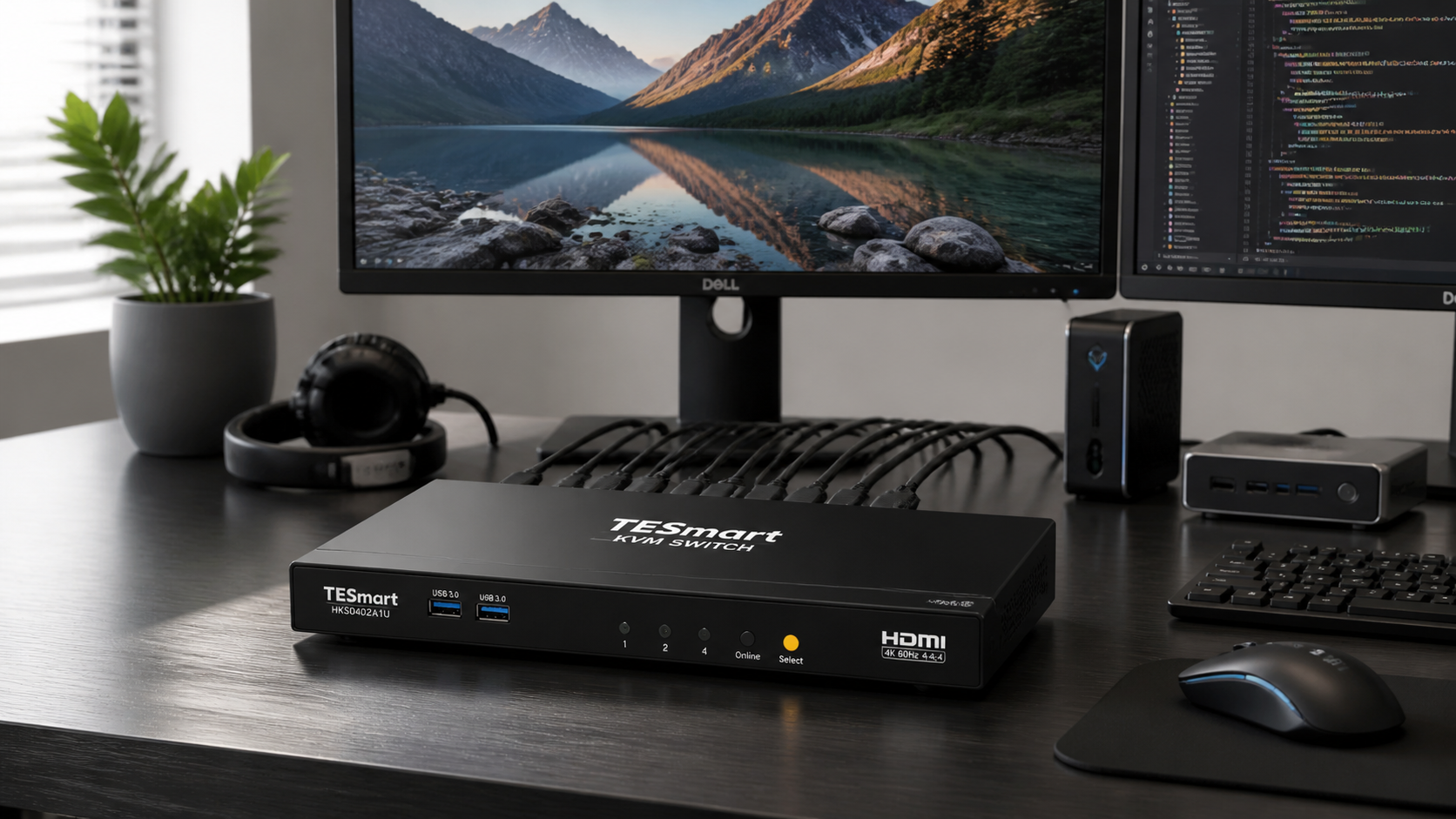
Streamers, traders, and content creators operate in a constant state of system juggling. You're switching between your gaming rig, streaming PC, and capture card system—fumbling with cables, repositioning monitors, and hunting for the right keyboard input between sessions. That 3-5 minutes of wasted time per session adds up fast when you're managing multiple machines daily.
The TESmart HDMI KVM Switch was engineered to solve exactly this problem. Unlike generic USB hubs or manual switching solutions, a true KVM (keyboard, video, mouse) switch lets you control multiple computers from a single input setup, eliminating the cable chaos entirely.
Your workflow doesn't have to be complicated. Discover how TESmart HDMI KVM switches transform multi-PC setups into seamless, single-desk operations. In this guide, you'll learn which models work best for streaming setups, how hotkey switching and EDID emulation actually improve your workflow, real-world performance specs, and whether the investment makes sense for your specific use case.
Why Streamers and Multi-PC Users Need a KVM Switch
The fundamental difference between a KVM switch and a standard HDMI splitter or USB hub
A KVM switch controls all three inputs—keyboard, video, and mouse—simultaneously across multiple computers. An HDMI splitter simply duplicates video signals; it doesn't handle mouse or keyboard input. A USB hub extends ports but doesn't manage system switching. A KVM switch does what those devices can't: it creates a unified control point for your entire multi-PC environment.
When you press a hotkey on your keyboard, the KVM switch redirects your keyboard, mouse, and monitor output to whichever computer you've selected. This is fundamentally different from manually unplugging cables or switching inputs on your monitor. The KVM becomes your command center.
How hotkey switching eliminates the need to physically move between computers
Hotkey switching is the efficiency engine of KVM workflows. Instead of reaching for your keyboard to toggle between systems, you use a programmed key combination—typically Scroll Lock + 1, Scroll Lock + 2, etc.—to instantly switch control to a different computer. Your mouse cursor, keyboard input, and monitor output all transfer in milliseconds.
For streamers, this means switching from your gaming PC to your streaming PC without breaking focus. For traders monitoring multiple data feeds, you're toggling between workstations without losing sight of market movements. For developers working across Linux, macOS, and Windows, you're staying in your chair, hands on one keyboard and mouse.
Real-world time savings: quantifying productivity gains for content creators managing multiple systems simultaneously
The math is straightforward. If you switch between systems 10 times during a 4-hour streaming session, and each physical switch takes 20 seconds (unplugging cables, repositioning monitors, reconnecting), that's 3+ minutes of lost productivity per session. Over a month of daily streaming, that's nearly 2 hours wasted on mechanical switching alone.
Hotkey switching reduces that 20-second process to under 1 second. The cumulative effect across days, weeks, and months is significant—not just for time recovered, but for maintaining creative momentum. You stay in the zone instead of breaking your workflow for technical micro-tasks.
TESmart HDMI KVM Switch Models: Matching Port Count to Your Setup
2-port models: ideal for streamers with a gaming PC and streaming PC combo
The 2-port TESmart HDMI KVM switch is the entry point for dual-PC streamers. This configuration handles the most common streaming architecture: a gaming rig running your game and a dedicated streaming PC managing OBS, chat, and encoding. With a single monitor, keyboard, and mouse connected to the KVM, you switch between systems instantly.
These models typically support 4K at 60Hz, include hotkey switching, and cost around $80–$120. They're compact enough to tuck behind a monitor or sit on a desk edge. Build quality is solid, with minimal lag between switching and input response.
4-port switches: perfect for multi-monitor studios with content creation and backup systems
A 4-port KVM switch accommodates more complex workflows: a gaming PC, streaming PC, capture card system, and perhaps a render machine or backup system. This setup scales well for professional studios where multiple team members might share equipment or where you're managing video editing, graphics rendering, and live streaming simultaneously.
4-port models often include dual-display support on select configurations, allowing you to run two monitors per system. EDID emulation on these units ensures your monitor resolution and refresh rate settings persist across all connected computers, eliminating display detection issues when switching. Pricing typically ranges from $150–$250.
8-port and higher configurations: enterprise and professional lab environments
For IT professionals managing servers, software developers testing across multiple OS environments, or high-end trading setups with 6+ workstations, 8-port and 16-port TESmart switches provide comprehensive control. These units are built for stability and durability in demanding environments—data centers, development labs, trading floors.
Higher-port models maintain the same hotkey switching and USB peripheral sharing benefits but handle increased complexity without performance degradation. Investment here reaches $250–$300+, justified by the infrastructure they support.
Resolution, Refresh Rates, and Display Performance Explained
4K resolution at 60Hz support: what this means for modern monitors and streaming setups
TESmart HDMI KVM switches supporting 4K at 60Hz can handle modern high-resolution displays without quality loss. For streamers, this means your gaming rig displays in native 4K resolution even when switched through the KVM. For content creators, 4K editing workspaces remain sharp and responsive.
The 60Hz refresh rate is sufficient for productivity, content creation, and streaming workflows. Gaming performance isn't throttled—your gaming monitor still receives the full 144Hz, 165Hz, or 240Hz signal from your gaming PC; the KVM doesn't reduce that. The 60Hz specification refers to what the KVM can handle when switching 4K signals across systems.
HDMI 2.0 vs. HDMI 2.1 compatibility and future-proofing your investment
Most TESmart models use HDMI 2.0 connectors, which handle 4K at 60Hz reliably. HDMI 2.1 supports higher bandwidth (8K resolution, higher refresh rates at 4K), but HDMI 2.1 is still being adopted across consumer monitors and GPUs. For current and near-term setups, HDMI 2.0 is sufficient and practical.
Future-proofing comes down to your specific needs. If you're running dual 1440p displays or a single 4K monitor at 60Hz, HDMI 2.0 handles it without compromise. If you anticipate moving to 8K or extreme gaming refresh rates at 4K within the next 2–3 years, verify that your chosen TESmart model aligns with those specs before purchasing.
Dual-display support on select models: when you need multiple monitors per system
Certain TESmart 4-port and higher models support dual-display configurations, letting you connect two monitors while maintaining KVM control across multiple systems. This is essential for traders monitoring multiple data streams, developers requiring split-screen coding and debugging setups, or content creators comparing multiple editing windows simultaneously.
Dual-display models cost more and consume additional HDMI connections from your KVM, but the productivity gain justifies the investment for multi-monitor workflows. Confirm that your specific TESmart model explicitly supports dual displays before committing to that configuration.
The Hotkey and USB Peripheral Sharing Features That Save Your Workflow
How hotkey switching works: keyboard shortcuts for instant PC toggling
Hotkey switching operates through a programmed key combination on your keyboard. The default is typically Scroll Lock pressed twice followed by a number (Scroll Lock + Scroll Lock + 1 for Computer 1, Scroll Lock + Scroll Lock + 2 for Computer 2, etc.). You can often reprogram these shortcuts to match your preference.
When you trigger a hotkey, the KVM switch instantly redirects your keyboard and mouse input to the target computer and switches your monitor output to that system's video signal. The transition is near-instantaneous—under 100 milliseconds in most cases. This speed preserves your workflow continuity and allows rapid system switching without disrupting your focus.
USB 3.0 peripheral sharing: extending mice, keyboards, and external drives across systems
Beyond keyboard and mouse control, TESmart KVM switches with USB 3.0 support let you share other peripherals—external hard drives, USB hubs, printers, or capture cards—across your connected systems. When you switch computers via hotkey, your USB peripherals automatically follow to the active system.
This eliminates the need for multiple external drives, separate USB hubs per computer, or constantly replugging devices. A single external SSD connected to the KVM's USB port becomes accessible to any computer you've switched to, as long as the KVM supports USB pass-through. This feature is particularly valuable for content creators transferring footage between editing and streaming machines.
Simultaneous USB device management without driver conflicts
Modern TESmart switches handle USB device management cleanly, switching peripheral connections without requiring driver reinstallation or manual re-enumeration on each system. Your mouse cursor, keyboard input, and USB drive access all transfer seamlessly.
Occasional compatibility quirks can arise with specific monitors or certain USB devices, but these are rare. Careful cable selection—using high-quality HDMI and USB cables—and verifying device compatibility with your specific TESmart model before purchase minimizes these issues. Review verified customer experiences and compatibility data to confirm your devices work reliably with TESmart switches.
The Bottom Line: Your Multi-System Setup Deserves Better Than Cable Chaos
A TESmart HDMI KVM Switch transforms how you work across multiple computers. Whether you're streaming with a dedicated capture PC, trading with market data spread across three monitors, or developing software across different operating systems, the right KVM switch eliminates friction from your workflow. The investment ranges from $80 for basic 2-port models to $300+ for advanced multi-monitor setups, but the time you reclaim and the desk space you save pay dividends immediately.
For streamers, traders, developers, and remote workers who demand clean setups and fast system switching, this is a legitimate productivity multiplier. Solid build quality, practical multi-PC workflow improvement, broad compatibility with Windows, macOS, and Linux, and strong value compared with enterprise-grade alternatives make TESmart an accessible choice for professionals and content creators alike.
Start by identifying how many computers you're currently juggling, then match that to the right TESmart port configuration. Start your transition to seamless multi-system control with a TESmart HDMI KVM Switch today.
Leave a Reply